10 posts tagged with "Workflow Automation"

View All Tags

· 9 min read
DahnM20

ComfyUI is a serious tool. The node-based canvas, the custom node ecosystem, the degree of control over the diffusion process — it's why it became the standard for local Stable Diffusion workflows. If you have the hardware and want to run models locally, it's hard to argue against it.

The problem is the "if you have the hardware" part. And even with capable hardware, the setup itself is its own project.

The actual friction with ComfyUI

These aren't complaints — they're documented realities the community openly discusses:

GPU requirements. Most workflows expect at least 8GB VRAM. SDXL models push that to 12GB for comfortable use. Running video models or multi-step pipelines needs more. On a machine without a capable Nvidia GPU, performance ranges from slow to unusable.

Python environment. ComfyUI runs on Python and requires specific versions of PyTorch, which requires specific CUDA versions, which depends on your GPU driver. On Windows this usually works if you follow the installation guide exactly. On Linux the steps change depending on your distribution. On Mac (Apple Silicon) you're on a separate path — different instructions, and not everything runs.

Dependency conflicts. Custom nodes are where it gets messy. Each one brings its own requirements. Even with ComfyUI-Manager, version conflicts happen. A node that worked last week can break after a ComfyUI update because something in its dependency tree shifted.

Accessibility. A running ComfyUI instance lives on one machine. Getting to it from another device requires a reverse proxy or tunneling setup. It's not something you pull up on a work laptop or hand off to a collaborator easily.

None of this makes ComfyUI bad. These are the trade-offs of running powerful local models on your own hardware. But if the setup is the wall between you and actually using the tool, that's worth solving differently.

What AI-Flow is, specifically

AI-Flow is a browser-based node canvas for building AI pipelines. Same mental model — nodes, connections, data flowing from one step to the next — but instead of running local models, it routes API calls to cloud providers: Replicate, Anthropic, OpenAI, Google.

You bring your own API keys (BYOK). Set them once in the key store and every node in every workflow draws from them automatically. No markup on provider costs — you pay Replicate or Anthropic directly at their rates.

The node logic will feel immediately familiar if you've spent time in ComfyUI. Text input → processing node → output. Conditional routing. Parallel branches. Chaining one model's output into another's input. Same compositional thinking, different execution environment.

What's different: no install. No GPU. No Python. Open a browser and build.
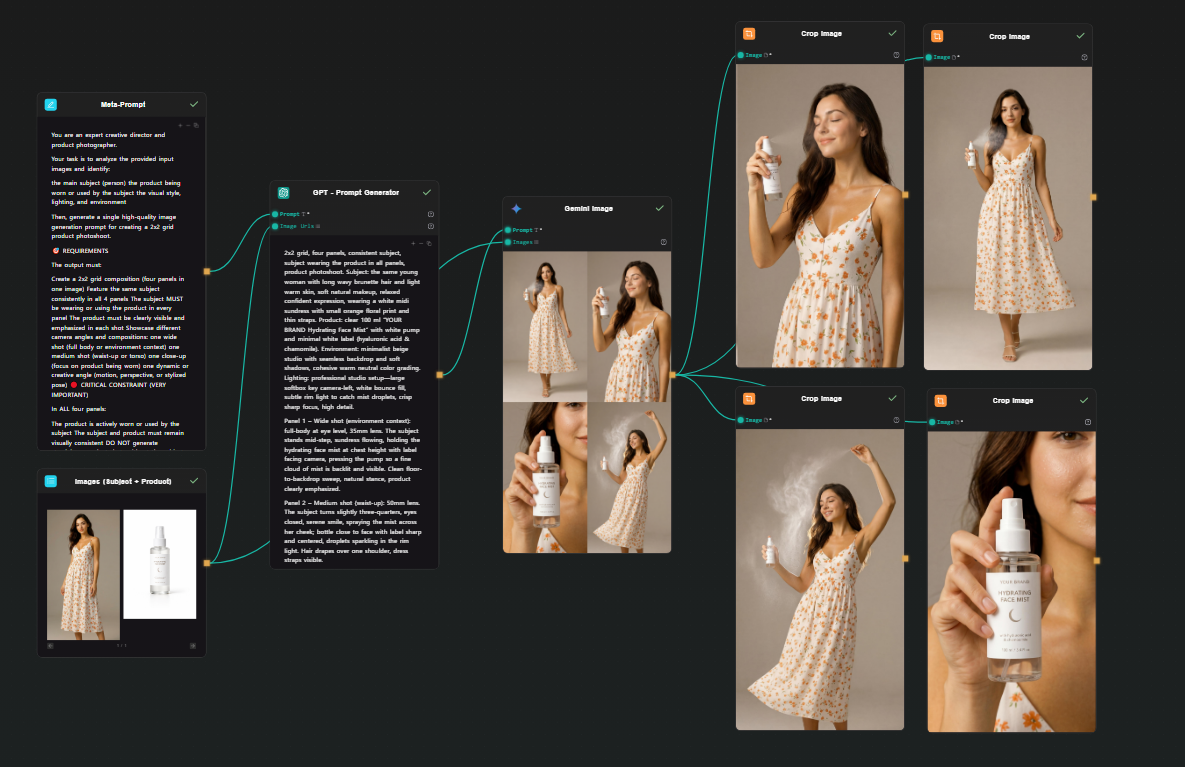
AI-Flow canvas — photoshoot pipeline showing the full node graph from image inputs to cropped outputs

What you give up

This is worth being direct about. AI-Flow is not a drop-in replacement if you're invested in the local model ecosystem.

No local models or custom checkpoints. Fine-tuned models, LoRAs, local .safetensors files — these are specific to local inference. API providers offer their own model catalog, but you can't upload arbitrary checkpoints.

No direct ControlNet equivalent. ComfyUI's ControlNet with local weights gives precise structural control. API image models have some comparable capabilities — depth guidance, style reference — but the control surface is different, and coverage varies by provider.

No custom node ecosystem. ComfyUI's community has thousands of contributed nodes. AI-Flow has a focused built-in set. If you need something that doesn't exist in the catalog, you're working around it.

Per-run API costs. Every generation costs something. You're also dependent on provider uptime — if Replicate has an issue, your pipeline waits. Local models don't have that dependency.

Less low-level control over diffusion. Specific samplers, exact CFG scale, step-level control — some of this is exposed via API, some isn't. The API layer abstracts parts of the process that ComfyUI exposes directly.

A workflow you'll recognize

Here's a concrete pipeline that maps cleanly to what you'd build in ComfyUI: two image inputs (subject + product) → prompt expansion via GPT → image generation via Google Nano Banana 2 → four cropped outputs. One shot, four consistent photos.

The use case is product photoshoot generation — you have a person and a product, you want four photoshoot-style images of that person holding, using, or interacting with it.

Step 1 — Two Image Input nodes

Drop two Image Input nodes on the canvas. Upload your subject photo (the person) to one, your product photo to the other. Both will feed into the next step together.

Step 2 — Meta Prompt node (instructions)

Add a Text node. This is your meta prompt — the instructions that tell the downstream GPT node what kind of photoshoot to generate. Something like:

You are an expert creative director and product photographer.
Your task is to analyze the provided input images and generate
a detailed, photorealistic image generation prompt for a 2x2 grid
photoshoot showing the subject using or holding the product in
different poses — close-up, full body, lifestyle, detail shot.
Describe lighting, composition, mood, and scene for each panel.
Output only the prompt.

Step 3 — GPT node (prompt expansion)

Add a GPT node. Connect both Image Input outputs and the Meta Prompt into it. GPT receives the two reference images plus your instructions and produces a single detailed prompt describing a 2x2 photoshoot grid — four distinct scenes, consistent subject and product across all panels, with specific lighting and composition direction for each.
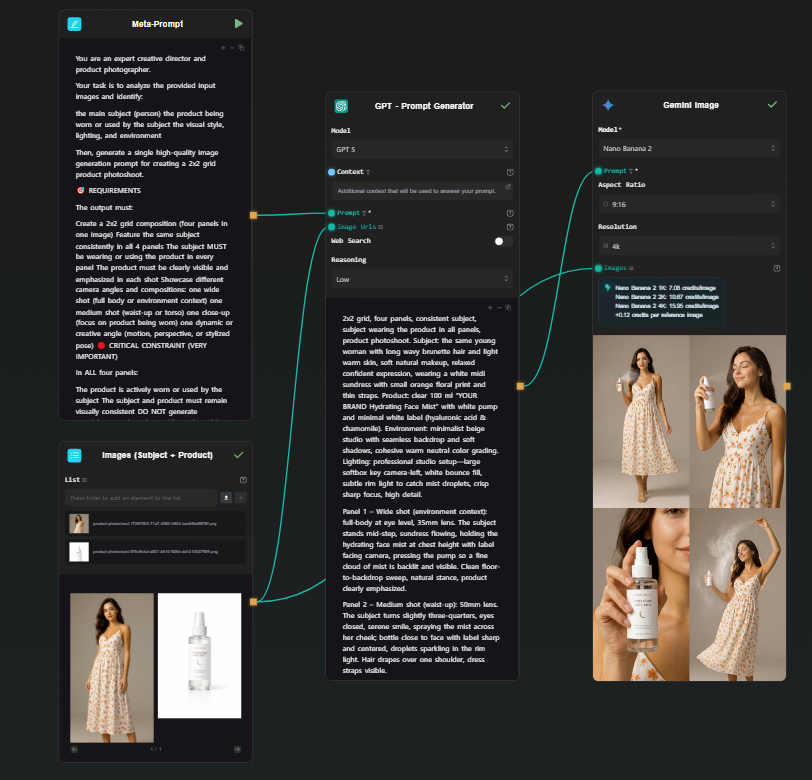
Meta Prompt and Image Input nodes feeding into GPT Prompt Generator and then into the Gemini Image generation node

Step 4 — Google Nano Banana 2 node (grid generation)

Add a Gemini Image node (Google Nano Banana 2). Connect the GPT prompt output to the prompt field, and connect both original images as reference inputs. Run.

Nano Banana 2 handles multi-image reference natively — it understands both the subject and the product from your input images and applies them consistently across the generated output. It produces a single high-resolution image structured as a 2x2 grid: four photoshoot scenes, one generation. The subject looks the same across all four panels because the model is working from your actual reference photo, not synthesizing a character from a text description.

Step 5 — Four Crop Image nodes (extract each panel)

Add four Crop Image nodes. Connect the Nano Banana 2 output to each. Configure each one to extract a different quadrant: top-left, top-right, bottom-left, bottom-right.

Each node outputs one clean photoshoot image. From a single generation, you have four consistent, usable photos.

Crop Image node showing the 2x2 grid being split into four individual photoshoot images

Optionally, connect each cropped output to an upscaler node on Replicate if you need higher resolution for each individual image.

Why this works better than generating four separate images

Here, Nano Banana 2 achieves the same thing because all four panels come from a single generation with the reference image in context. The subject's face, the product's packaging, the visual style — consistent by construction, not by iteration.

The cost math

A ComfyUI user running local models pays upfront for hardware and ongoing electricity, but zero per run. That math works well at high volume once the hardware is paid for.

An API-based workflow pays per run, no hardware cost. Using your own API keys:

  • Google Nano Banana 2 (via Gemini API): ~$0.15 per generation
  • Upscaling (via Replicate): ~$0.002–0.01 depending on the model

The photoshoot workflow above generates four consistent images in a single run. At ~$0.15 for the generation step, that's four usable photos for a few cents — no GPU purchase, no electricity, no environment to maintain.

For moderate usage — iterating on a project, running a few dozen generations a day — the cost is low. For bulk production workloads, local hardware eventually wins on per-run economics, but that crossover requires both the hardware already purchased and consistently high volume.

When to use which tool

Use ComfyUI if:

  • You have a capable GPU and want to run models locally
  • You need specific LoRAs, custom checkpoints, or fine-tuned models
  • You want precise ControlNet control or deep access to the diffusion process
  • You're generating at high enough volume that per-run cost matters more than hardware cost

Use AI-Flow if:

  • You want node-based pipeline thinking without local setup
  • You're working with API-based models — Replicate's catalog (1000+ models), Anthropic, OpenAI, Google
  • You need to access the workflow from multiple machines or share it with collaborators
  • You don't have a capable GPU and don't want to buy one for this use case

If your situation fits the second list, the templates library has pre-built image and multi-model pipelines to start from. Add your API keys in the key store, open a template, run it. The free tier works with your own keys — no platform credit needed to see how it behaves.
· 7 min read
DahnM20

Replicate gives you API access to thousands of AI models — image generation, video generation, image editing, audio, and more. The API is clean, but using it in practice means writing a client for each model, handling polling for async predictions, managing file URLs, and wiring outputs from one model into inputs for the next. That's fine for a production service, but it's a lot of overhead when you're iterating on a pipeline.

AI-Flow can be used as Replicate API workflow builder that removes that overhead. You pick a model from a catalog (or type in any model ID directly), the interface generates the input form from the model's schema, and you connect models together visually. No API calls to write, no polling loop, no file handling code.

How the Replicate node works

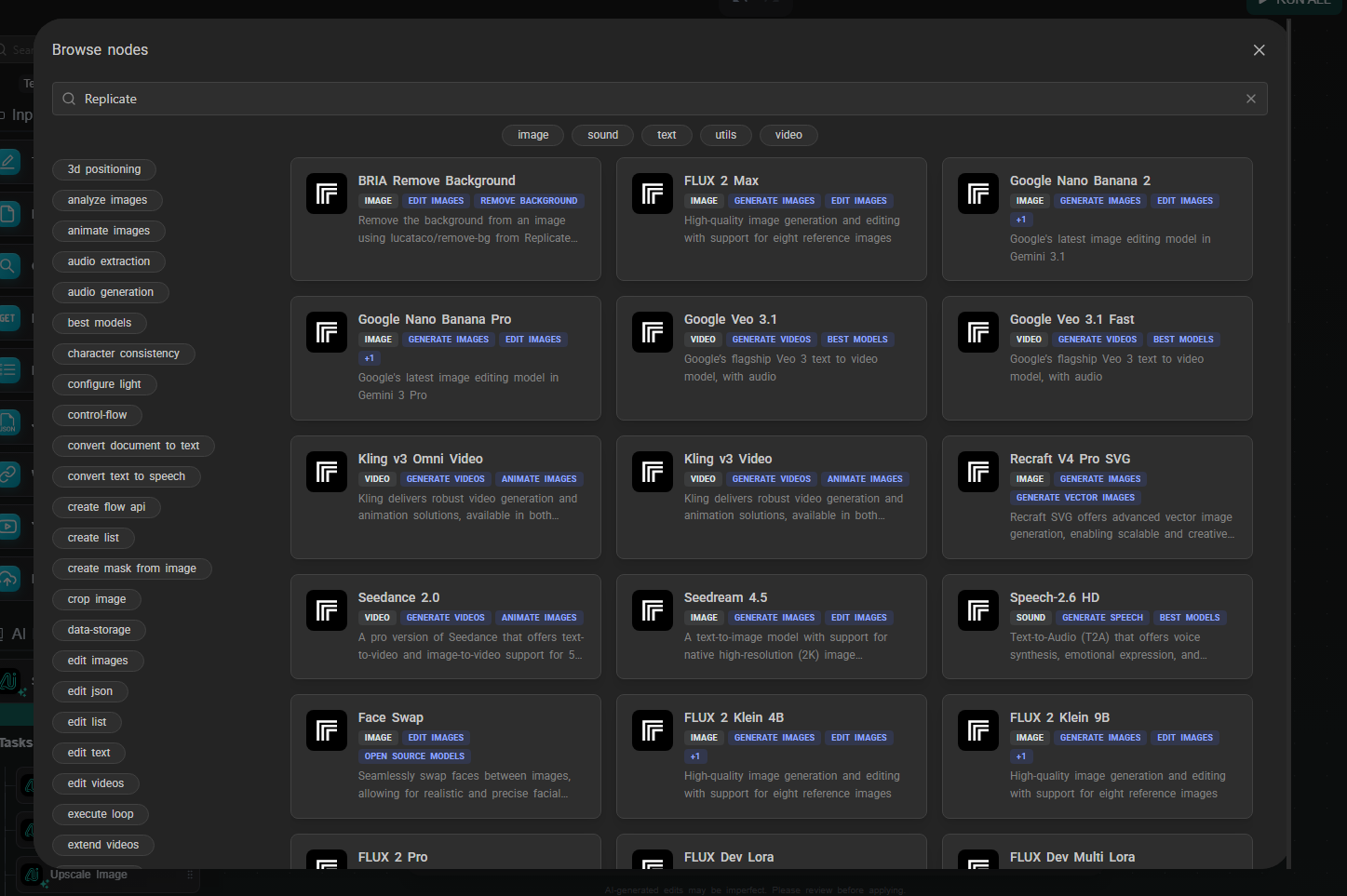
Drop a Replicate node on the canvas. You'll see a model selector with a curated list of featured models organized by category — image generation, image editing, video generation. Pick one and click confirm.

Replicate node model selector

The node reconfigures itself based on the selected model's input schema. If the model expects a prompt, a width, a height, and a num_outputs parameter, those fields appear in the node. Input fields that accept data from other nodes show connection handles, so you can wire outputs directly into them.

If the model you want isn't in the featured list, type the model ID directly in the format owner/model-name (for example, black-forest-labs/flux-2-max). AI-Flow fetches the schema from Replicate and builds the form the same way. This works for any model hosted on Replicate — not just the ones in the curated list.

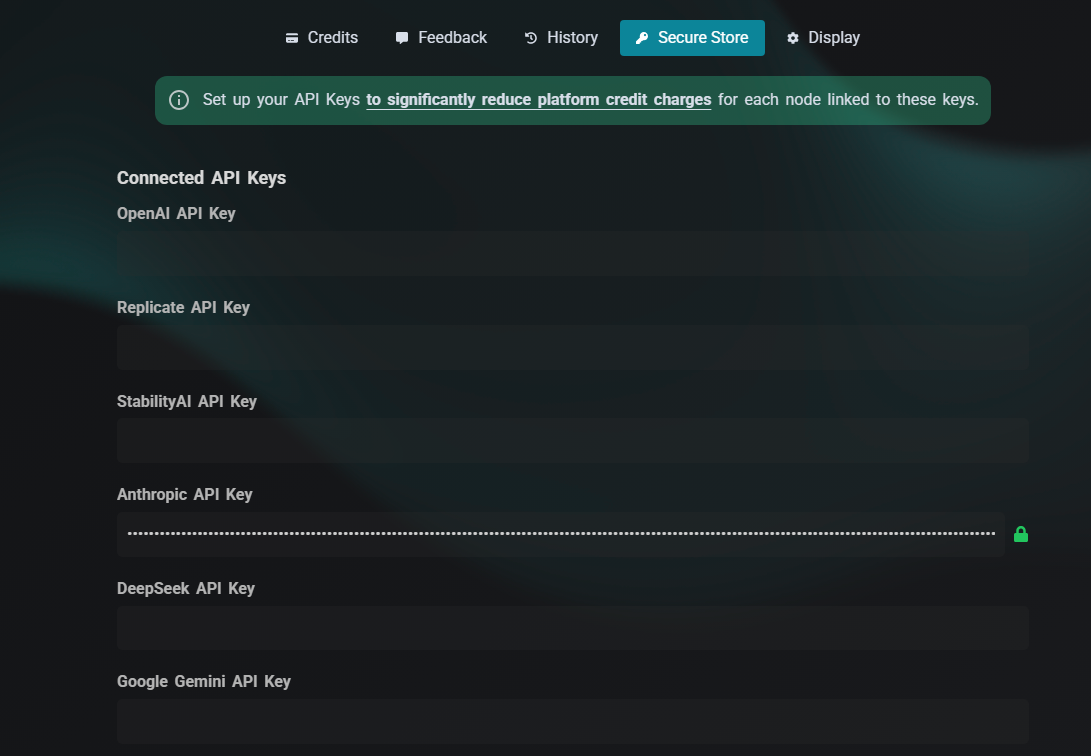
Your Replicate API key lives in the key store (Settings → Secure Store). Set it once; every Replicate node in every workflow draws from it automatically. With your own key, you have access to the full Replicate catalog.

A few of the models currently in the spotlight catalog:

Image generation & editing:

  • FLUX 2 Max / Pro — Black Forest Labs' latest text-to-image models, high quality
  • FLUX 2 Klein 9B / 4B — faster, cheaper FLUX variants for rapid iteration
  • Google Nano Banana 2 — Google's image editing model (Gemini 3.1), handles style transfer, background replacement, inpainting, object removal, and more from a single prompt
  • Seedream 4.5 — text-to-image from ByteDance

Video generation:

  • Google Veo 3.1 — text-to-video with native synchronized audio (ambient sound, dialogue) baked in; no separate audio node needed
  • Google Veo 3.1 Fast — lower-cost variant, same native audio
  • Kling v3 Video / Omni — text-to-video and image-to-video, with native audio output
  • Kling v3 Motion Control — animates an image following a reference motion trajectory
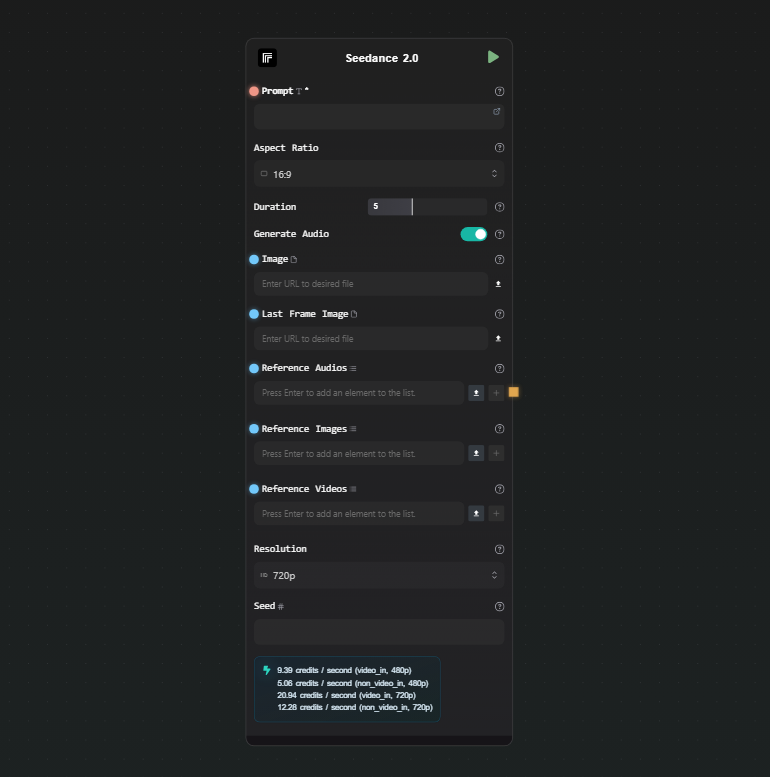
  • Seedance 2.0 / Fast — ByteDance image-to-video and text-to-video

The catalog updates as new models are released on Replicate.

Workflow example: LLM-to-image pipeline

A common use case: use a language model to expand a rough concept into a detailed image prompt, then feed that into a Replicate image model. This avoids the prompt engineering overhead on the image model side and produces more consistent, detailed results.

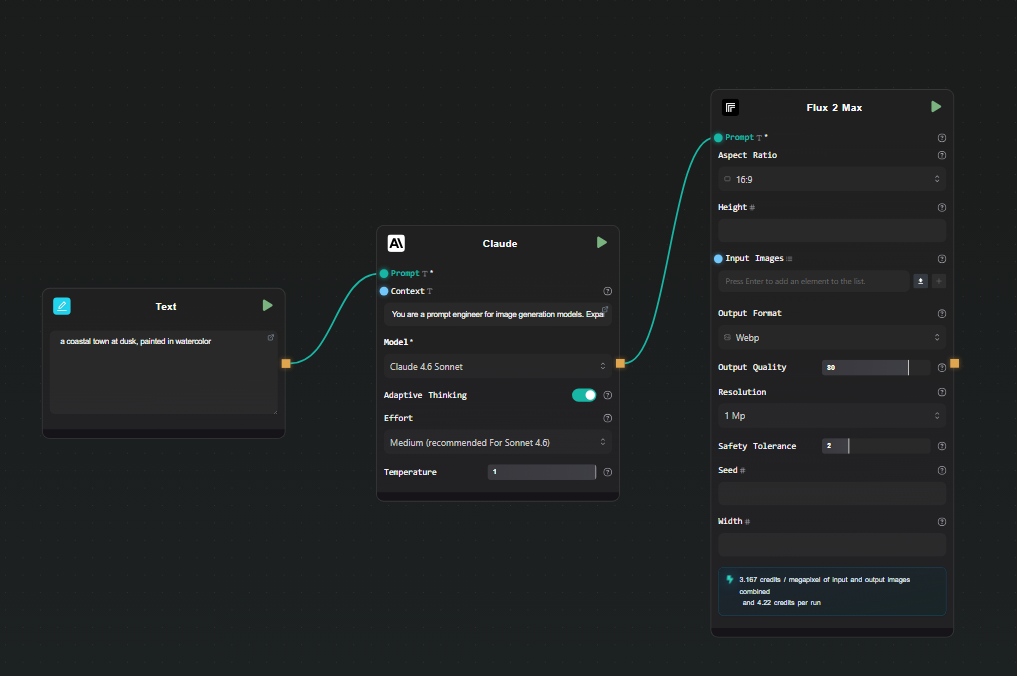
Step 1 — Text Input

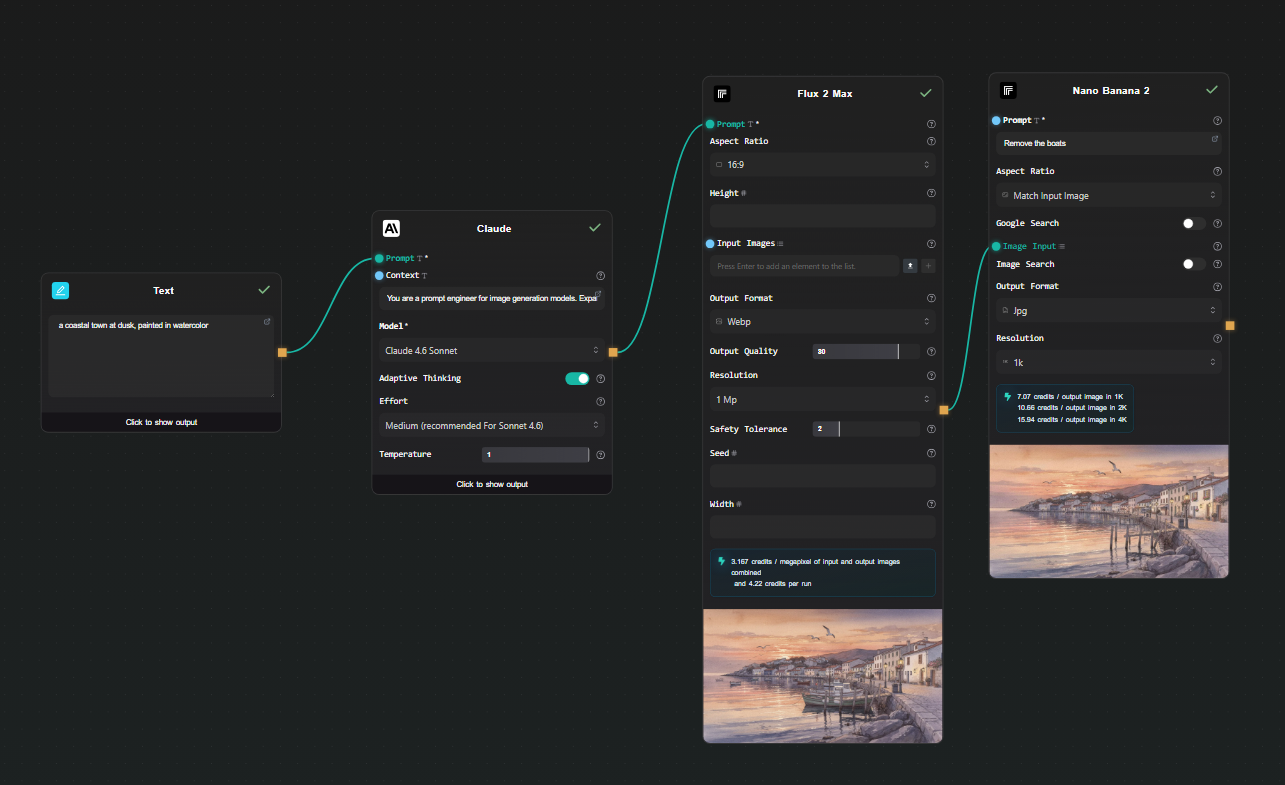
Add a Text Input node. Type your rough concept: "a coastal town at dusk, painted in watercolor".

Step 2 — Claude node (prompt expansion)

Add a Claude node. Connect the Text Input output to the Context field. In the Prompt field:

You are a prompt engineer for image generation models.
Expand the concept in the context into a detailed, vivid image generation prompt.
Describe lighting, composition, style, and mood. Output only the prompt, no commentary.

Select Claude 4.6 Sonnet. This gives you a detailed, model-optimized prompt from a two-word concept.

Step 3 — Replicate node (image generation)

Add a Replicate node. Select FLUX 2 Max from the model catalog. Connect the output of the Claude node to the prompt field of the Replicate node.

Set any other parameters you want — aspect ratio, output format — directly in the node.

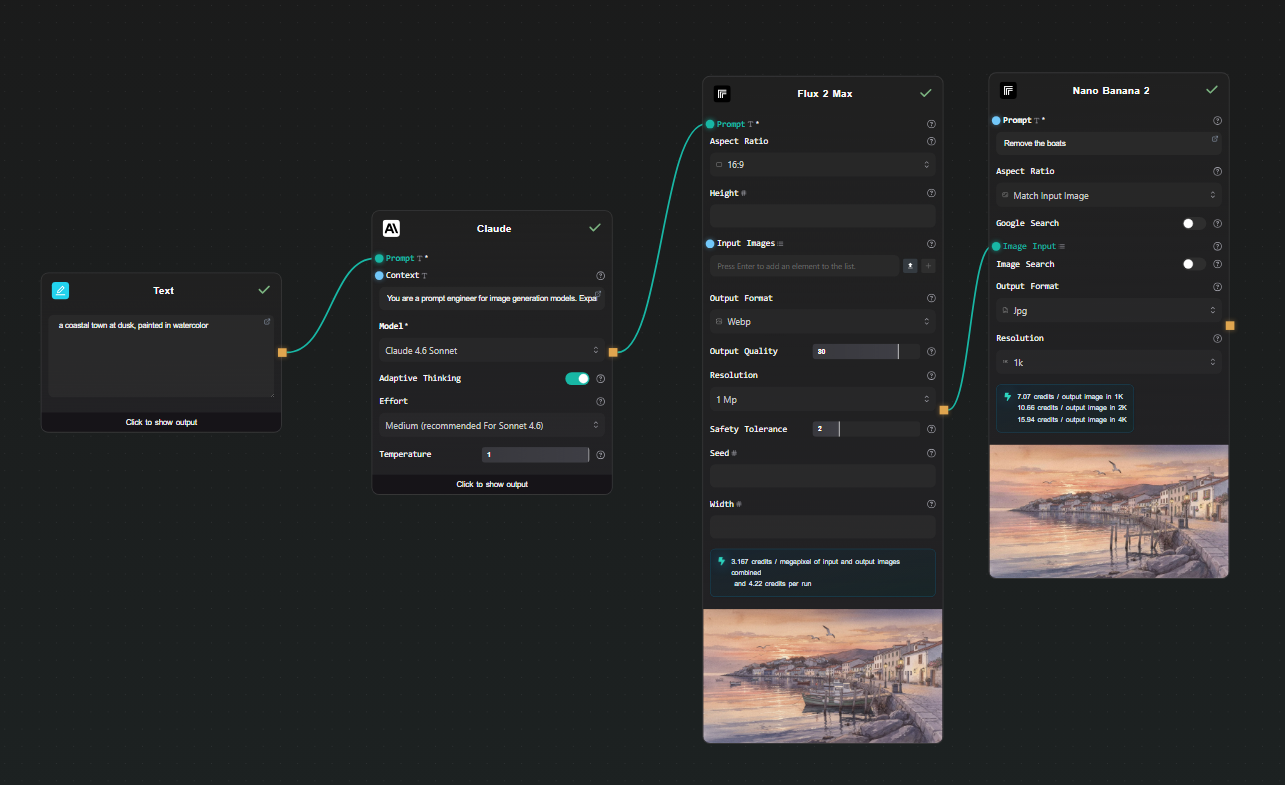
Text Input to Claude to FLUX 2 Max pipeline

Step 4 — Run

Hit Run. The pipeline executes in order: your rough concept goes through Claude, an expanded prompt comes out, that prompt goes to FLUX 2 Max on Replicate, and the generated image appears beneath the node. AI-Flow handles the Replicate prediction polling and file storage automatically — you just see the result.

Swap the Text Input content and run again to iterate. Change the Replicate model to compare FLUX 2 Pro vs. FLUX 2 Klein without rewiring anything.

Extending the pipeline

Image editing as a second step

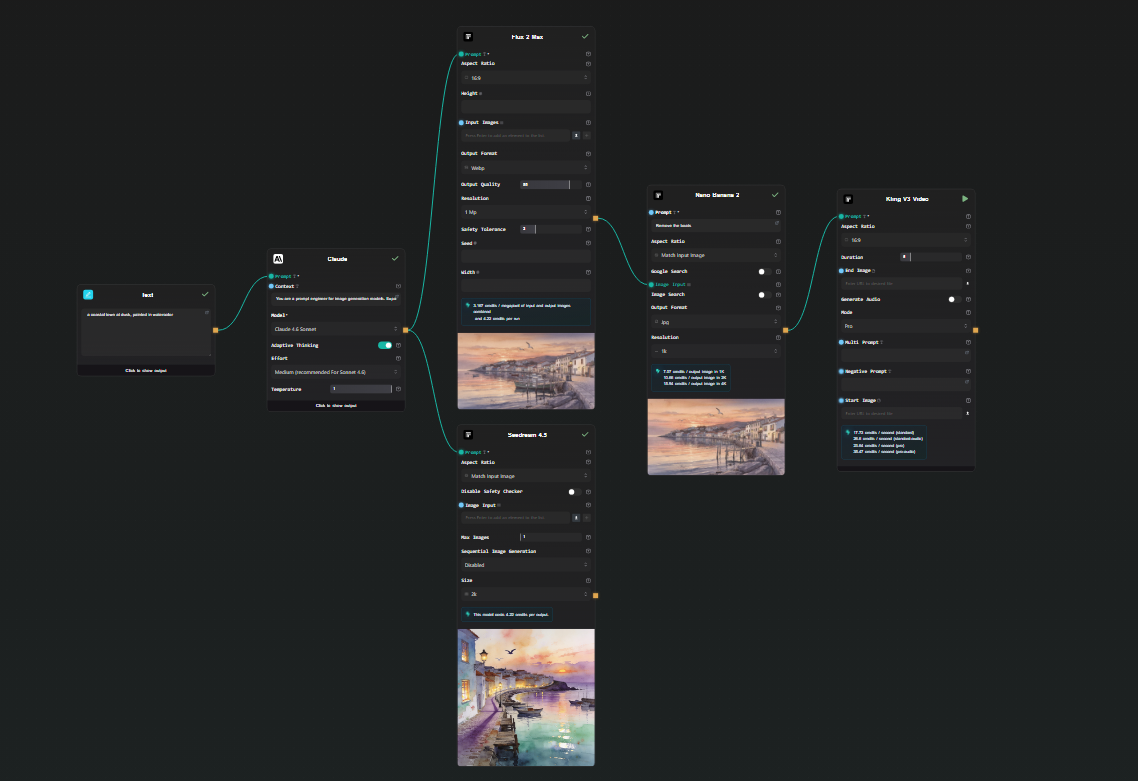
After generating an image, connect its output to a second Replicate node using Google Nano Banana 2. This model takes an image and a text instruction and edits it — change the background, alter the style, remove an object, adjust colors. You get a two-step generate-then-edit pipeline without any code.

Image to video pipeline with Kling v3

Image to video

Connect a Replicate image output to a Kling v3 Video node. Add a motion prompt in the node's text field. The result is a short video animated from your generated image — text → LLM → image → video, all in one workflow.

Note: Veo 3.1 and Kling v3 both output video with native audio already embedded. You don't need to add a separate audio generation node.

Run multiple models in parallel

Connect the Claude output to two separate Replicate nodes — FLUX 2 Max and Seedream 4.5, for example. Both run from the same prompt simultaneously. You get side-by-side results to compare outputs across models without running the pipeline twice.

Running FLUX 2 Max and Seedream 4.5 in parallel from the same prompt

Expose as an API

Add an API Input node at the start and an API Output node at the end. AI-Flow generates a REST endpoint — you POST a concept string, the full pipeline runs, and you get back the image URL. Useful for integrating into an external application without maintaining the pipeline code yourself.

What this removes from your workflow

Without a visual Replicate API workflow builder, running these pipelines means:

  • Writing replicate.run() calls with the right version IDs
  • Polling for prediction status
  • Downloading the output file from Replicate's temporary URL and re-hosting it if needed
  • Writing a second client call for the next model in the chain
  • Redeploying whenever you change a model or parameter

In AI-Flow, changing a model is a dropdown selection. Changing a prompt is editing a text field. Adding a step is dropping a node and drawing a connection. The iteration cycle is much shorter.

Try it

Add your Replicate API key in AI-Flow's key store, drop a Replicate node on the canvas, and pick a model. The templates library has pre-built image and video generation workflows to start from if you'd rather not build from scratch.

· 6 min read
DahnM20

Most platforms that let you use Claude either charge a markup on top of Anthropic's pricing or lock you into their managed model access. AI-Flow takes the opposite approach: you bring your own Anthropic API key, it gets stored in an encrypted key store, and every Claude node in every workflow draws from it automatically. You pay Anthropic directly at their standard rates — nothing extra on the model cost side.

This article covers how to set it up, what the Claude node actually does, and a practical workflow to run once everything is connected.

Why BYOK matters for Claude

When you use Claude through a third-party platform without BYOK, you're often paying a percentage on top of Anthropic's input/output token rates. For light use, this is barely noticeable. For any workflow that runs frequently — summarization pipelines, classification at scale, document processing — the markup compounds quickly.

With a BYOK setup in AI-Flow, the cost for a Claude call is exactly what Anthropic charges for that model and token count. The platform fee covers AI-Flow itself, not a percentage of your model usage.

There's also a control argument: your key, your usage data. The call goes from AI-Flow's backend directly to the Anthropic API using your key, under your account.

Step 1 — Get your Anthropic API key

If you don't have one yet, create an account at console.anthropic.com, navigate to API Keys, and create a new key. Copy it — you'll paste it into AI-Flow in the next step.

Make sure your Anthropic account has credits or a billing method set up. The key won't work for API calls without it, regardless of how it's configured in AI-Flow.

Step 2 — Add the key to AI-Flow's key store

Open AI-Flow and click the settings icon (top right of the interface) to open the configuration panel. You'll see a Keys tab with input fields for each supported provider.

Paste your Anthropic API key into the Anthropic field and click Validate.

AI-Flow config panel with the Keys tab open

If you're logged into an AI-Flow account, the key is encrypted before being stored — it persists across browsers and sessions. If you're using AI-Flow without an account, the key is stored locally in your browser.

That's the entire setup. You don't configure the key per-node or per-workflow. Every Claude node in every canvas you create will automatically use it.

What the Claude node can do

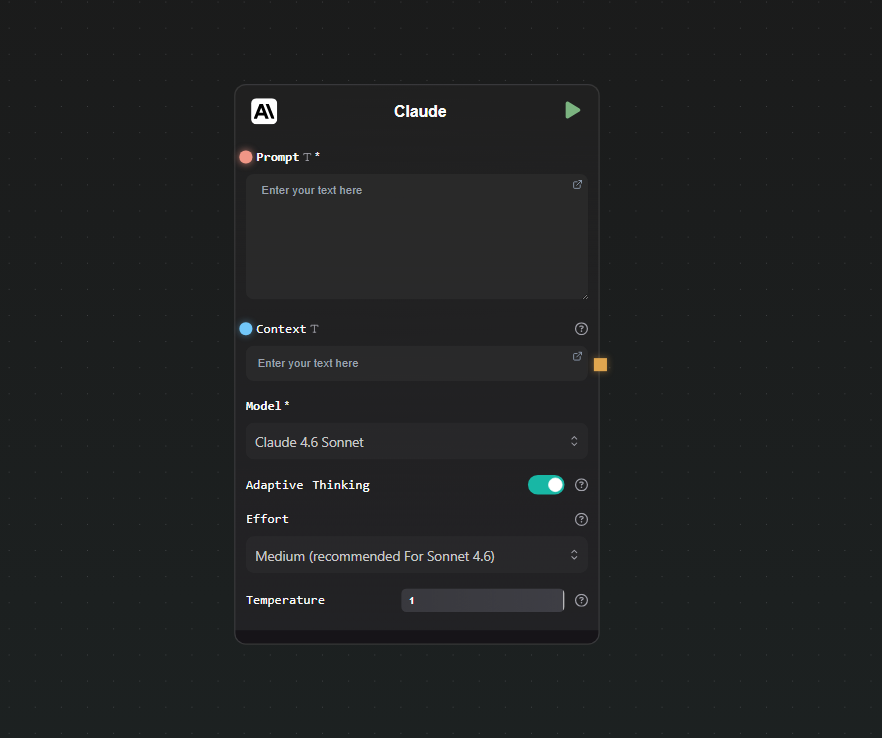
Drop a Claude node on the canvas and open its settings. Here's what you can configure:

Model selection — Available models as of writing:

  • Claude 4.5 Haiku — fastest, lowest cost, good for classification and short tasks
  • Claude 4.5 Sonnet — balanced capability and speed
  • Claude 4.5 Opus — highest capability in the 4.5 line
  • Claude 4.6 Sonnet (default) — current recommended choice for most tasks
  • Claude 4.6 Opus — highest capability overall

Inputs:

  • Prompt — the main instruction or question. Has a connection handle so you can wire output from other nodes into it.
  • Context — optional additional data for Claude to reference (a document, scraped text, another model's output). Also has a handle.

Adaptive thinking — Enabled by default on Claude 4.6 models. It allows the model to think through complex problems before responding. You control the depth with an effort setting: low, medium (default for Sonnet 4.6), high, or max (for the hardest Opus 4.6 tasks).

Temperature — slider from 0 to 1. Lower values produce more deterministic output; higher values increase variation. Default is 1.

Output is streamed as it generates — you see the response building in real time beneath the node, rather than waiting for the full response.

Claude node on canvas with model selector open

A practical workflow: summarize and classify in one pass

Here's a simple pipeline that uses Claude to do two things at once — summarize a document and assign it a category — saving a round trip compared to running two separate prompts.

Step 1 — Text Input

Drop a Text Input node and paste in the document you want to process (an article, a support ticket, a report — whatever your use case requires).

Step 2 — Claude node

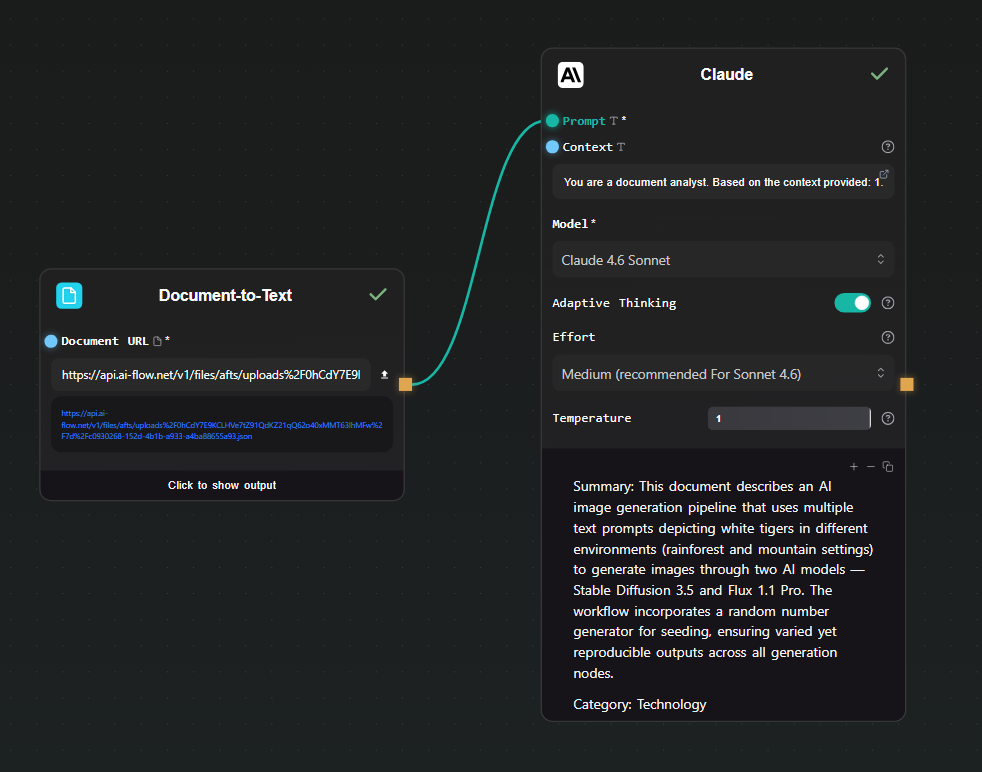
Connect the Text Input to the Context field of a Claude node. In the Prompt field, write:

You are a document analyst. Based on the context provided:
1. Write a 2-sentence summary.
2. Assign a single category from this list: Technology, Finance, Health, Legal, Other.

Format your response as:
Summary: <your summary>
Category: <category>

Set the model to Claude 4.6 Sonnet. Leave adaptive thinking on — it helps with instruction-following tasks like this.

Step 3 — Run

Hit Run. Claude reads the document from the context field, applies the prompt, and streams back a structured response. Results appear beneath the node as they stream in.

Canvas with Text Input connected to Claude node, output visible below

Step 4 — Extract the fields (optional)

If you want to use the summary or category in a downstream node, add an Extract Regex node or connect the output to a prompt in another node. For fully structured extraction, switch to the GPT Structured Output node instead — it enforces a JSON schema so the output is always machine-readable.

Using Claude across multiple workflows

Once the key is in the store, you can use Claude in any number of workflows without any additional setup. Build a summarization pipeline today, a classification workflow tomorrow, an image-description workflow using the context field to pass image URLs — the key is always available.

The same applies to your other provider keys (OpenAI, Replicate, Google). Each is stored once and shared across all nodes and all canvases. If you rotate your Anthropic key, update it in the key store once and all your workflows pick up the new key automatically.

Starting from a template

Rather than building from scratch, the AI-Flow templates library has pre-built Claude workflows covering summarization, content generation, and multi-step reasoning pipelines. Load one, add your key if you haven't already, and run it.

Try it

Add your Anthropic API key to the AI-Flow key store, drop a Claude node on the canvas, and run your first prompt. The free tier is available without a subscription — you only pay for what you send to the Anthropic API.

· 6 min read
DahnM20

Getting an LLM to return structured JSON output reliably usually requires extra work: writing a system prompt that demands JSON, handling cases where the model doesn't comply, parsing the response, and validating the schema. If you're doing this in Python, it's manageable. If you're repeating it across multiple pipelines, it becomes repetitive boilerplate.

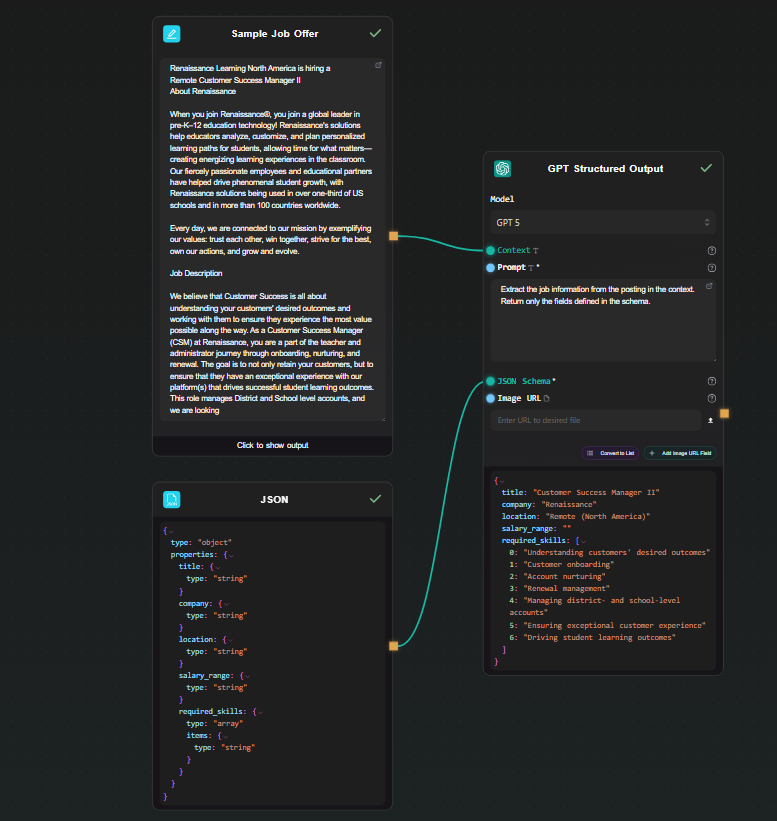
AI-Flow has a dedicated node for this: GPT Structured Output. You define a JSON Schema, connect your data, and the model always returns a valid object matching that schema. No parsing code. No validation loop. This article walks through a practical pipeline built with it.

How structured JSON output works in AI-Flow

The GPT Structured Output node uses OpenAI's native structured output mode. You pass it three things:

  • Context — the data you want the model to process (a document, a customer message, a product description, anything text-based)
  • Prompt — the task instruction (e.g., "Extract the job title, company, and required skills from this posting")
  • JSON Schema — the exact structure you expect back

The node enforces strict mode automatically, so the model is constrained to always return a valid object. You get a native JSON output — not a string that contains JSON — which means downstream nodes can work with it directly.

If you prefer Gemini models, there's also a Gemini Structured Output node with the same interface, supporting Gemini 2.5 Flash, 2.5 Pro, and newer Gemini 3 models.

Your API keys (OpenAI or Google) are stored in AI-Flow's secure key store, accessible from the settings tab — you configure them once and all nodes can use them.

Workflow example: extracting structured data from job postings

The scenario: you have raw job posting text and want to extract a clean, consistent object with the title, company, location, salary range, and a list of required skills — for every posting, in the same format.

Step 1 — Add a Text Input node

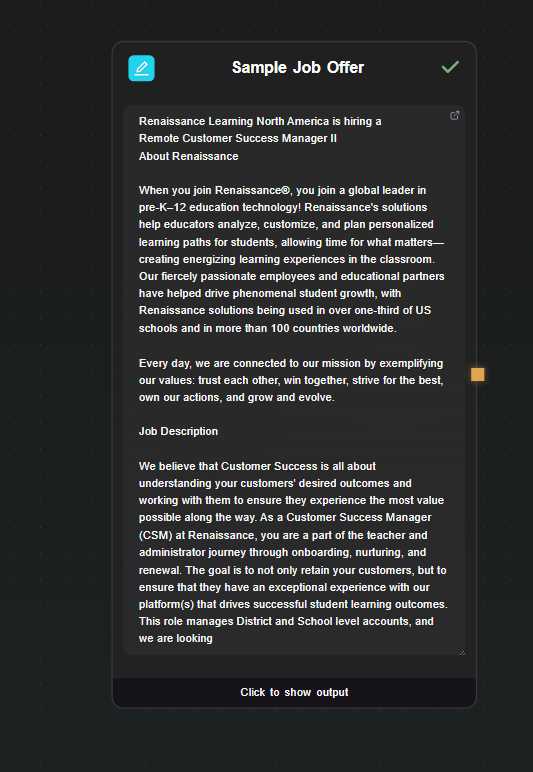
Drop a Text Input node on the canvas. Paste a raw job posting into it. This is your data source; in a real pipeline you'd connect this to an API input or a scraping node, but for testing a direct input works fine.

Text Input node with a sample job posting

Step 2 — Add the GPT Structured Output node

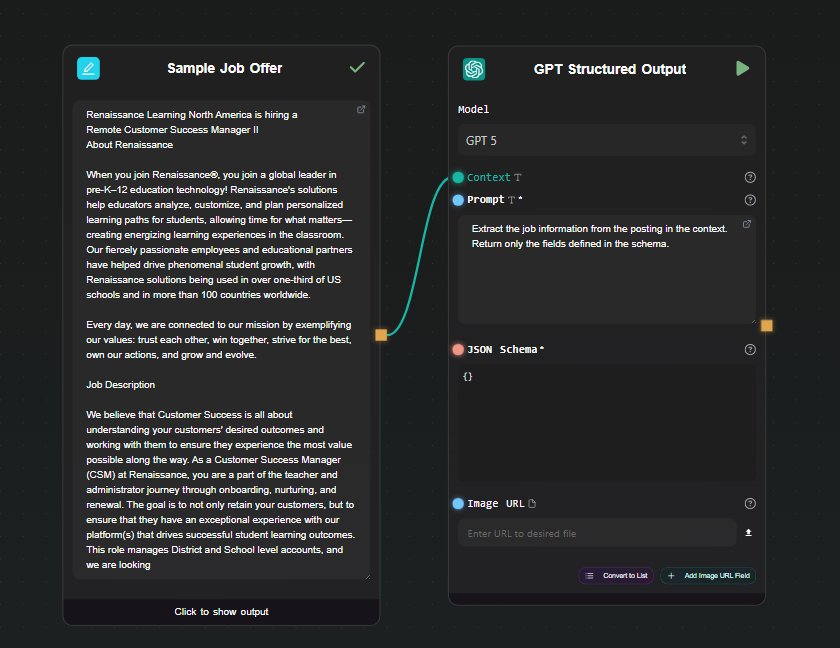
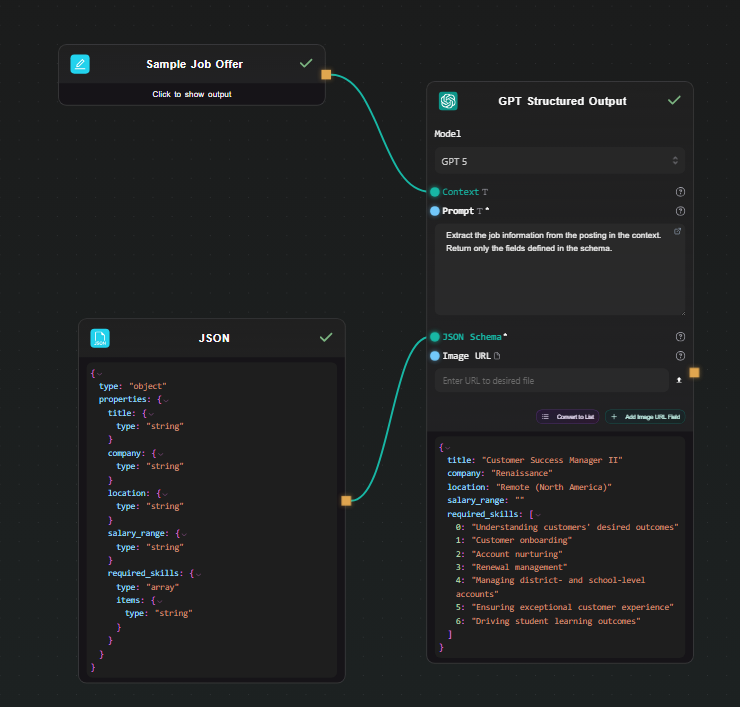
Drop a GPT Structured Output node on the canvas. Connect the output of the Text Input node to its Context field.

In the Prompt field, write the extraction instruction:

Extract the job information from the posting in the context.
Return only the fields defined in the schema.

Select your model — GPT-4o-mini is sufficient for extraction tasks and is cheap to run.

GPT Structured Output node with prompt field and model selector

Step 3 — Define the JSON Schema

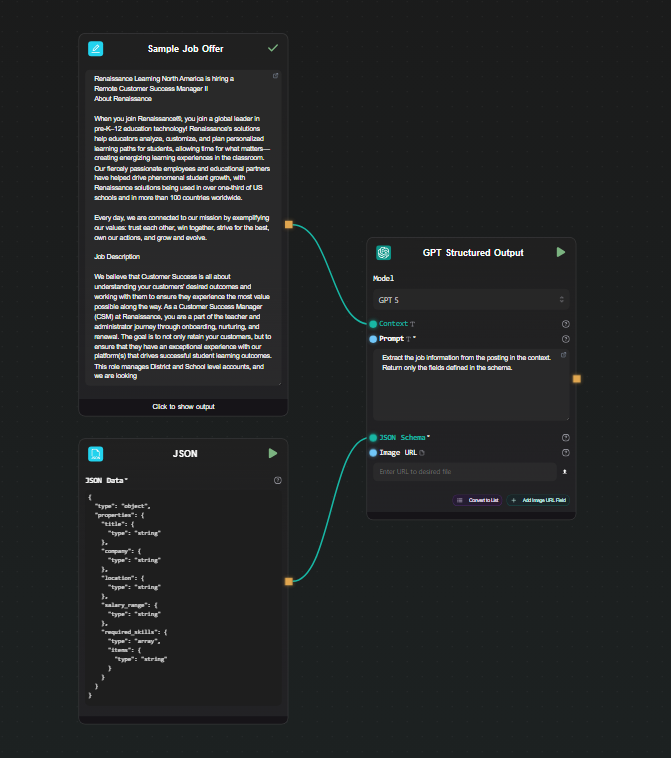
In the json_schema field, enter the structure you want back:

{
"type": "object",
"properties": {
"title": { "type": "string" },
"company": { "type": "string" },
"location": { "type": "string" },
"salary_range": { "type": "string" },
"required_skills": {
"type": "array",
"items": { "type": "string" }
}
}
}

That's the full configuration. AI-Flow handles the strict mode enforcement internally — you don't need to add required arrays or additionalProperties: false yourself, the node does it before sending the request to the API.

JSON schema field filled in

Step 4 — Run and inspect the output

Hit Run. The result appears beneath the node as a JSON object:

{
"title": "Senior Backend Engineer",
"company": "Acme Corp",
"location": "Remote",
"salary_range": "$130,000 – $160,000",
"required_skills": ["Go", "PostgreSQL", "Kubernetes", "gRPC"]
}

Every run returns the same structure. Change the input text and run again — the schema stays consistent across all inputs.

Step 5 — Use the output downstream

Because the node outputs native JSON, you can connect it to other nodes without any conversion step.

Extract a single field: Connect the GPT Structured Output node to an Extract JSON node. Set the mode to Extract Key and enter required_skills. The output is just the skills array — useful if you want to pass it to another prompt or format it separately.

Format the result as text: Connect to a JSON Template node. Write a template like:

**${json.title}** at ${json.company}
Location: ${json.location}
Salary: ${json.salary_range:Not specified}
Skills: {% for skill in json.required_skills %}${skill}, {% endfor %}

The JSON Template node supports path access, loops, conditionals, and fallback values — it turns the structured object into whatever text format you need downstream.

Canvas showing the full pipeline with JSON output visible

When to use Gemini Structured Output instead

The Gemini Structured Output node works identically from a workflow perspective — same fields, same JSON schema interface, same native JSON output. Use it when:

  • You already have a Gemini API key and want to keep costs on one provider
  • You need to process files alongside text (the Gemini node accepts file URLs, including PDFs and images)
  • You want to compare output quality between GPT and Gemini on your specific extraction task — both nodes can sit on the same canvas for easy side-by-side testing

Exposing the pipeline as an API

Once the extraction workflow is working, you can expose it as a REST endpoint using AI-Flow's API Builder. Add an API Input node in place of the Text Input node and an API Output node at the end. AI-Flow generates an endpoint and a key — you POST the raw text, get back the structured JSON. No server to maintain, no framework to configure.

This is useful for integrating the extraction pipeline into a larger application without copying the LLM logic into your codebase.

Starting from a template

If you'd rather start from an existing pipeline than build from scratch, the AI-Flow templates library has data extraction and processing workflows you can adapt. Load one, swap the schema and prompt for your use case, and run.

Try it

The GPT Structured Output node is available on the AI-Flow free tier. You need an OpenAI API key — add it once in the key store under settings, and it's available to all nodes in all your workflows.

· 6 min read
DahnM20

n8n is a genuinely great tool. It's open source, self-hostable, has hundreds of integrations, and a large active community. If you're automating business processes — syncing CRMs, routing webhooks, connecting SaaS tools — it's hard to beat.

This article isn't about whether n8n is good. It is. It's about a specific scenario where the two tools diverge: pipelines where the primary work is done by AI models. Chaining LLM calls, generating images, extracting structured data, routing based on model output. That's where the difference starts to matter.

How they're designed differently

n8n is a general-purpose automation platform. AI capabilities were added on top of a foundation built for connecting business applications.

AI-Flow is built specifically for AI model pipelines. The node set, the canvas, the output handling — everything is oriented around calling models, routing their outputs, and iterating on the results.

Working with AI models directly

In n8n, native AI nodes cover OpenAI and Anthropic basics. For anything outside that list — a specific Replicate model, a newer Gemini variant, a specialized image model — you reach for the HTTP Request node and write the API call yourself. That means handling the schema, authentication, polling for async results, and managing file URLs manually.

AI-Flow has dedicated nodes for Claude, GPT, Gemini, Grok, DeepSeek, DALL-E, Stability AI, and a Replicate node that gives you access to 1000+ models through a searchable catalog. You pick a model, the node generates the input form from the model's schema, and you connect it to the rest of the pipeline. No raw API calls to write.

Every parameter the model exposes is available in the node — nothing is abstracted away or hidden behind simplified controls. If the model has 15 input fields, you see all 15.

Replicate node model selector with input fields visible after selection

This matters most during iteration. When you're tweaking a pipeline — swapping a model, adjusting a parameter, comparing outputs — doing it through a visual node is faster than editing API call parameters in code or HTTP request bodies.

Structured output

A common pattern in AI pipelines: use an LLM to extract structured data from unstructured input — a document, a customer message, a product listing — and feed the result into downstream steps.

AI-Flow has dedicated GPT Structured Output and Gemini Structured Output nodes. You define a JSON Schema in the node, and the model is constrained via native structured output mode — it always returns a valid object matching that schema. The output is a native JSON object that downstream nodes work with directly. No parsing code, no validation loop.

{
"type": "object",
"properties": {
"sentiment": { "type": "string" },
"score": { "type": "number" },
"key_topics": {
"type": "array",
"items": { "type": "string" }
}
}
}

Define that schema, write a prompt, and every run returns that exact structure regardless of input variation.

GPT Structured Output node with schema field and JSON output

Visual iteration on model pipelines

n8n's canvas works well for automation logic. For AI pipelines specifically, the visual feedback loop matters more — you're often running a chain multiple times, looking at intermediate outputs, adjusting a prompt, and running again.

AI-Flow's canvas shows live output beneath each node as the workflow runs. You can see the result of each step — the LLM output, the extracted JSON, the generated image — without navigating away from the canvas. When something looks wrong, you can identify exactly which node produced it.

Canvas mid-run with output visible beneath each node

This isn't a feature n8n lacks so much as a different design priority — AI-Flow treats the canvas as an interactive scratchpad for building and debugging model pipelines, not just a diagram of a deployed automation.

BYOK and cost model

Both tools support BYOK. In AI-Flow, you add your Anthropic, OpenAI, Replicate, and Google keys once in the secure key store — every node in every workflow uses them automatically. You pay the model provider directly at their rate. AI-Flow's platform fee is a one-time credit purchase, not a subscription, and there's no markup on what you pay to providers.

For workflows running heavy model workloads, that cost structure is worth understanding before choosing a platform.

Exposing pipelines as APIs

Both tools let you call a workflow from an external application. In n8n, you configure a Webhook trigger node. In AI-Flow, you add an API Input node at the start and an API Output node at the end — AI-Flow generates a REST endpoint with an API key automatically. You can also expose the workflow as a simplified form-based UI without any frontend code, which is useful for sharing a pipeline with non-technical collaborators.

When to use n8n

If your automation connects business applications — CRMs, databases, Slack, email, hundreds of SaaS tools — n8n is the right choice. It has deeper integrations, a larger community, self-hosting options, and years of production use behind it. AI-Flow has some utility integrations (HTTP, Webhooks, Notion, Airtable, Telegram) but it's not competing on that dimension.

When to use AI-Flow

If the pipeline's primary work is model calls — chaining LLMs, generating images or video, extracting structured data, routing based on model output — AI-Flow is designed for that. The model coverage is broader, structured output is a first-class feature, the canvas is built for iterating on prompts and parameters, and every model parameter is exposed without abstraction.

The specific cases where it tends to matter:

  • You need models beyond OpenAI and Anthropic basics, especially Replicate's catalog
  • You want structured JSON output without writing parsing code
  • You're iterating quickly on prompt chains and want visual feedback at each step
  • You want to expose the pipeline as a REST API with minimal setup
  • You want to avoid per-execution platform fees on top of model costs

If you're building something AI-model-heavy, the templates library has pre-built pipelines to start from. The free tier works with your own API keys — open AI-Flow and try building the pipeline there.

· 6 min read
DahnM20

Chaining Claude and Replicate models together normally means writing API clients for two different services, handling rate limits, serializing outputs from one into inputs for the next, and gluing it all together with Python or Node.js. It works, but it's tedious — and every time you want to tweak the pipeline, you're back in the code.

AI-Flow is a visual workflow builder built specifically for this kind of multi-model pipeline. You connect your own API keys, drop nodes onto a canvas, wire them together, and run. No boilerplate, no deployment headache. This article walks through a practical example: using Claude to write a prompt, then feeding that prompt into a Replicate image model.

Why combine Claude and Replicate?

Claude is a strong reasoning model — good at interpreting vague instructions, structuring text, and generating detailed, specific prompts. Replicate hosts hundreds of open-source image, video, and audio models that respond well to precise, descriptive inputs.

The combination is practical: Claude takes your rough idea and turns it into an optimized prompt; a Replicate model like FLUX or Stable Diffusion turns that prompt into an image. The quality difference between a vague prompt and a Claude-crafted one is significant, especially for generative image models.

The problem is that wiring this up with raw API calls is repetitive and fragile. AI-Flow removes that friction.

What you need

  • An AI-Flow account (free tier works)
  • An Anthropic API key (for Claude)
  • A Replicate API key (for image models)
  • Add them in AI-Flow Secure Store

You pay Anthropic and Replicate directly at their standard rates.

Building the workflow: step by step

Step 1 — Add a Text Input node

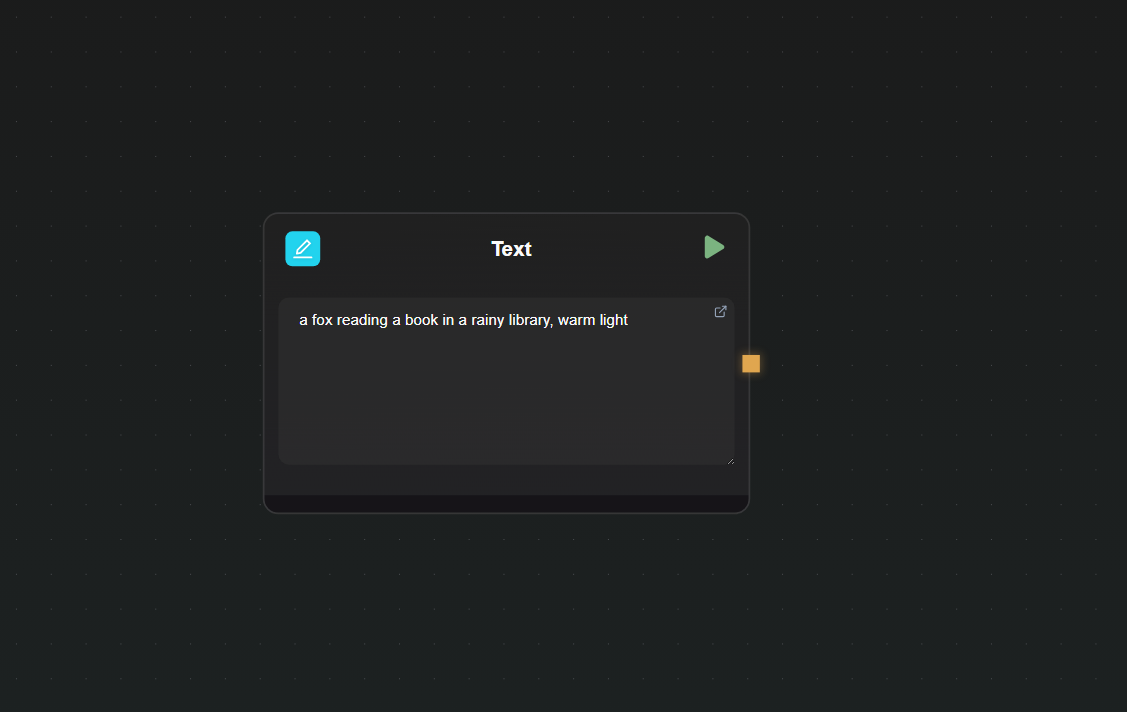
Open a new canvas and drag in a Text Input node. This is where you'll type your raw concept — something like "a fox reading a book in a rainy library, warm light". Keeping this as a separate node means you can re-run with different prompts without touching the rest of the workflow.

Text Input node on canvas

Step 2 — Add a Claude node and configure it

Drag in a Claude node. In the node settings:

  • Select your model (Claude 4.6 Sonnet is a good default for this task)
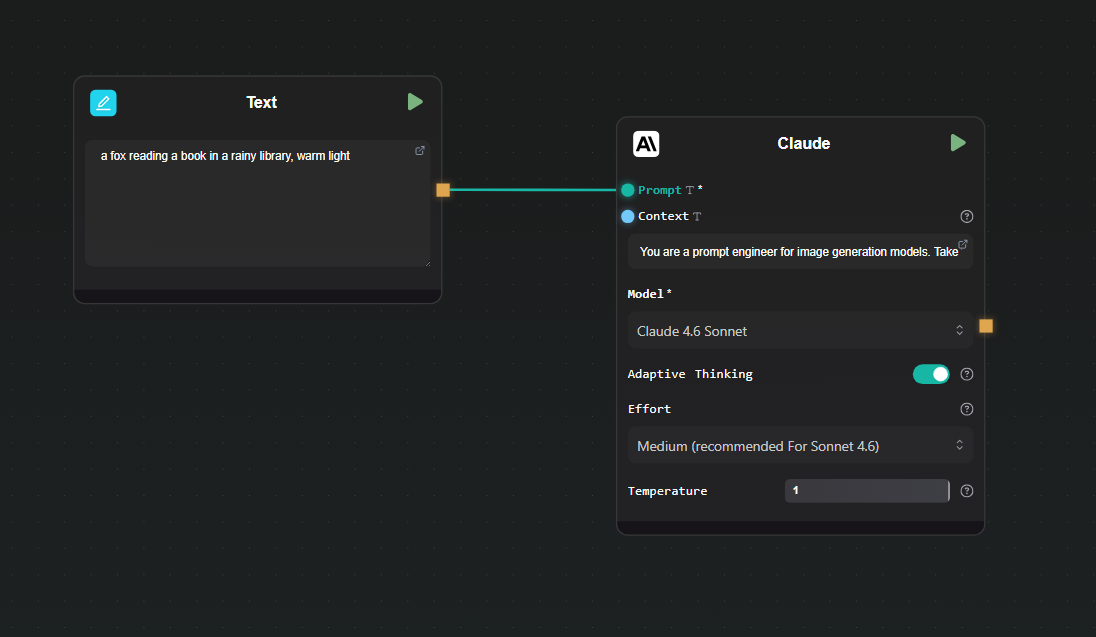
  • Set the system prompt to something like: "You are a prompt engineer for image generation models. Take the user's concept and rewrite it as a detailed, vivid image generation prompt. Output only the prompt, nothing else."

Connect the output of the Text Input node to the user message input of the Claude node.

Claude node configuration

Step 3 — Add a Replicate node

Drag in a Replicate node. Click the model selector and search for the image model you want to use — Nano Banana 2, Flux Max, or any other image model from the Replicate catalog.

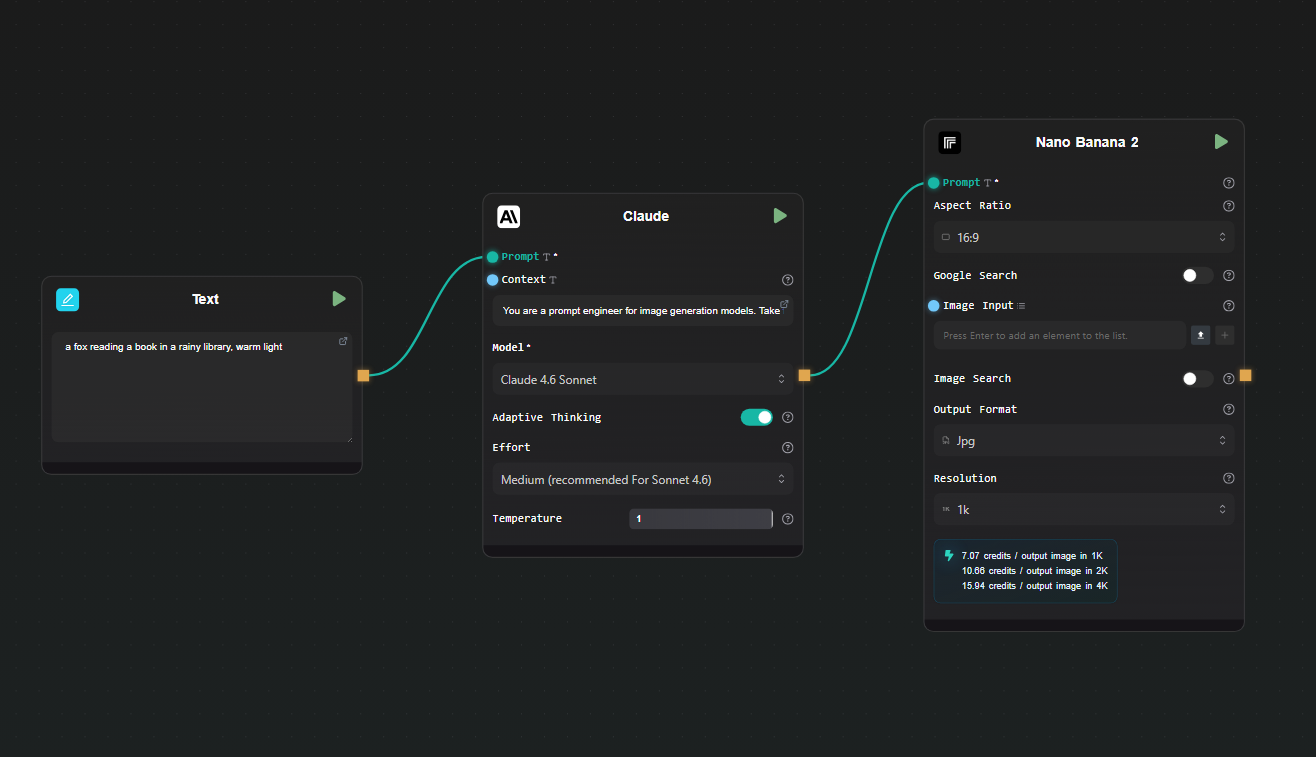
Map the prompt input of the Replicate node to the output of the Claude node. Most image models on Replicate accept a prompt field — the node interface surfaces the model's input schema so you can map fields directly.

Replicate node connected to Claude output

Step 5 — Run the workflow

Hit Run. AI-Flow executes the nodes in sequence: your raw concept goes into Claude, Claude returns an optimized prompt, that prompt goes to Replicate, and the generated image appears in the output node. The whole chain runs without you writing a single line of code.

To iterate, change the text in the Text Input node and run again. Claude will generate a different prompt, and Replicate will produce a new image.

Extending the workflow

Once the basic chain is working, there are natural extensions:

Add a second Replicate model. You could run the same Claude-generated prompt through two different image models side by side — connect the Claude output to two separate Replicate nodes to compare results.

Add conditional logic. AI-Flow supports branching nodes. If Claude's output contains certain keywords, you can route the prompt to a different model or add a negative prompt node before it reaches Replicate.

Expose it as an API. Use AI-Flow's API Builder to wrap the workflow as a REST endpoint. You POST a concept, the pipeline runs, and you get back the image URL — useful for integrating into your own app without maintaining the pipeline code yourself.

Use a template as a starting point. The AI-Flow templates library has ready-made workflows for image generation pipelines. Loading one and swapping in your own prompts and models is faster than building from scratch.

What this approach avoids

The straightforward alternative to this is writing two API clients and a small orchestration script. That works, but you're maintaining code, handling errors, managing keys in environment variables, and redeploying whenever the pipeline changes. For a pipeline you'll iterate on frequently — different models, different prompts, different output formats — the overhead adds up.

AI-Flow keeps the pipeline state in the canvas. Changing a model is a dropdown selection. Changing the prompt structure is editing a text field. There's no diff to review, no test suite to update, no deployment to trigger.

Try it

If you have Anthropic and Replicate API keys and want to run this kind of pipeline today, open AI-Flow and start with a blank canvas or pick a template from the templates page. The free tier is enough to build and run this workflow.

· 4 min read
DahnM20

AI-Flow Notion Integration

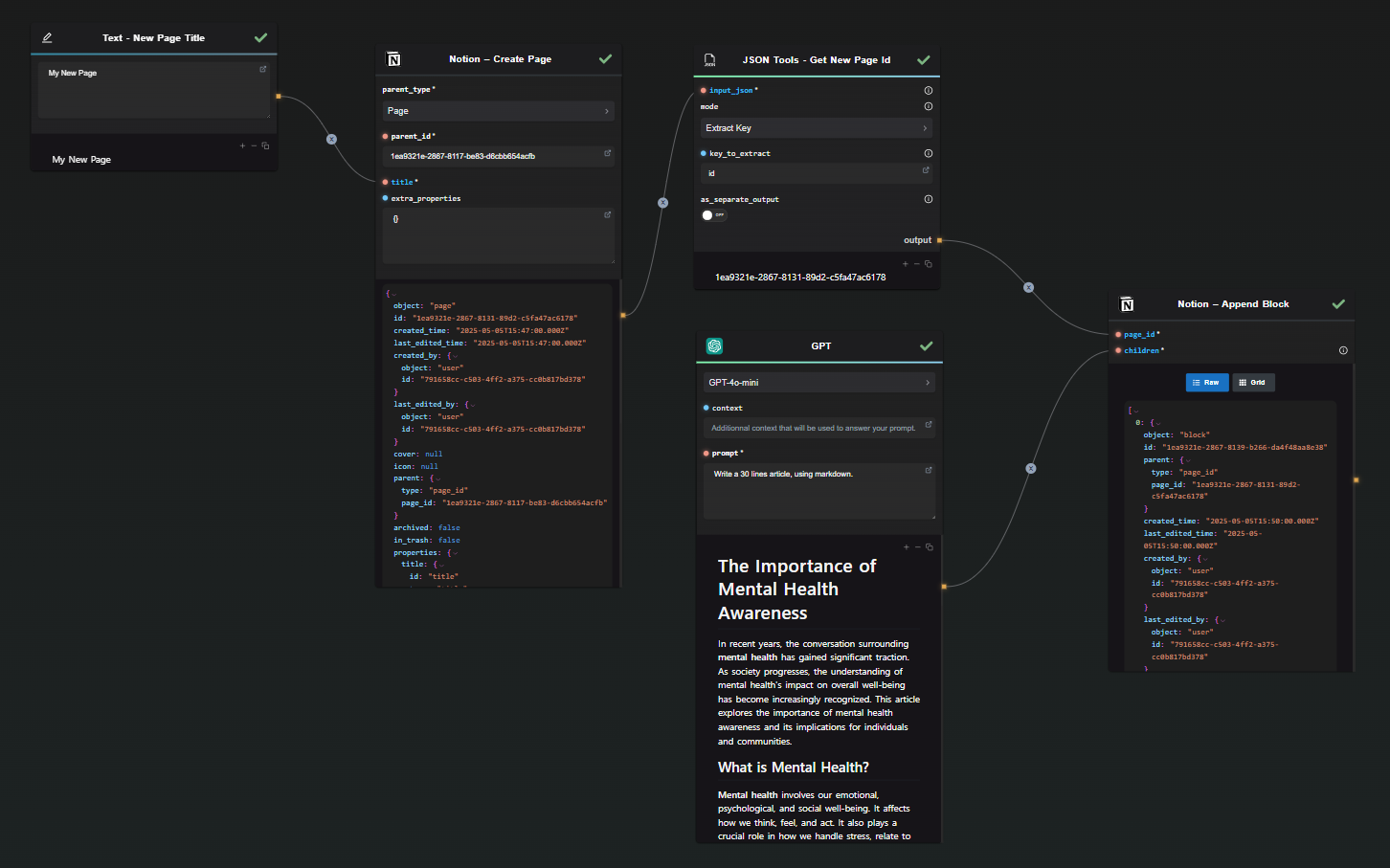
This template is designed for individuals and teams who need to consistently generate new content in Notion without starting from scratch every time. Whether for personal organization or team projects, this tool streamlines content creation using AI.

Template - Generate Page Notion

Why use this template instead of a blank ChatGPT prompt?

  1. Structured Workflow: The template provides a predefined flow, integrating AI generation directly with Notion.
  2. Efficiency: Saves time by automating repetitive tasks, reducing manual input.
  3. Seamless Integration: Directly connects AI-generated content with Notion, preventing data transfer errors.

Quick-look checklist

  • Input the new page title.
  • Create a new Notion page.
  • Extract the new page ID with JSON Tools.
  • Generate content using the GPT model.
  • Append the generated content to the Notion page.

Step-by-step walkthrough

Chat droïde initial dans AI-FLOW

Input the New Page Title

  • What it does: Captures the title for your Notion page.
  • Why it matters: Titles provide context and make pages easy to locate.
  • How to tweak it: Use clear, descriptive titles that reflect the page content. You can also create the article earlier, and generate the title with GPT if you wish.

Create a New Notion Page

  • What it does: Initiates a new page creation in Notion.
  • Why it matters: Sets up a structured space for your content.
  • How to tweak it: Modify extra_properties if additional page attributes are needed.

Extract the New Page ID

  • What it does: Obtains the unique ID for the newly created page.
  • Why it matters: Ensures subsequent actions target the correct page.

Generate Content with GPT

  • What it does: Uses AI to create content for your page.
  • Why it matters: Quickly generates high-quality text to populate your pages.
  • How to tweak it: Customize the prompt for different writing styles or topics.

Append the Content to Notion

  • What it does: Adds the generated content to the targeted Notion page.
  • Why it matters: Automates the content insertion, keeping your workflow seamless.

Template - Generated Page in Notion

Customisation ideas

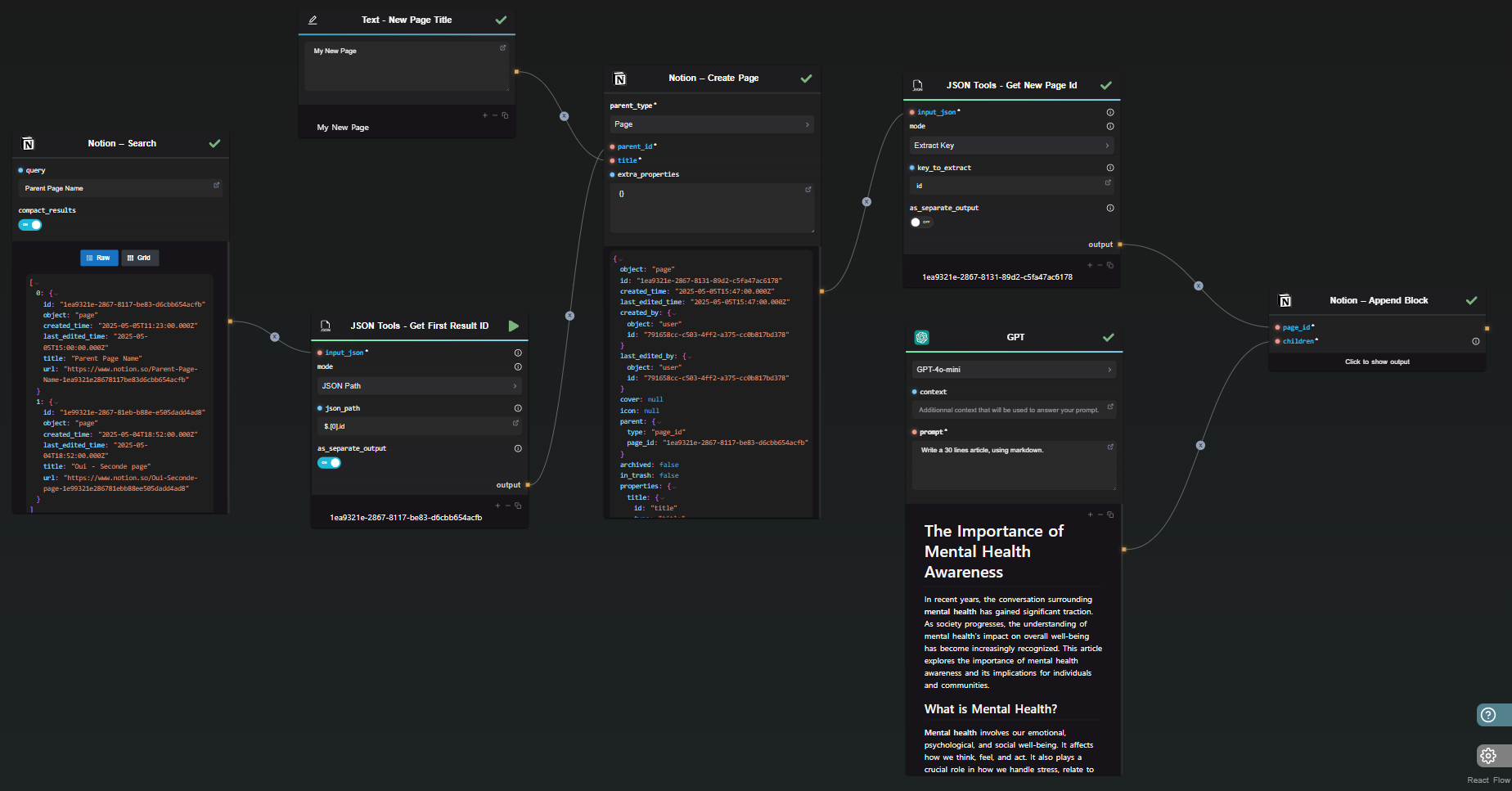
Scenario 1: Add a Search Step

If you don't know the parent id of the page on which you'll add a new sub-page, you can use the Notion Search Node and find every id you need. The template below is also available in the "Templates" section of the app.

Search &amp; Generate Notion Page

Scenario 1: Personal Knowledge Base

Use the template for daily journaling or note-taking. Customize the GPT prompt to reflect personal insights or summaries.

Scenario 2: Team Project Documentation

Adapt the template to generate structured project reports. Integrate specific project details into GPT prompts for tailored outputs.

Scenario 3: Integrate API Input and API Output

This will allow you flow to be usable through HTTP Request with user inputs, and also, to be reusable in others workflows as a easy to use node.

Common pitfalls & quick fixes

  1. Incorrect Page ID Retrieval: Double-check JSON extraction settings if page content isn't updated.
  2. Misaligned Content Formatting: Preview generated content to ensure formatting aligns with Notion's style. Mardown is automatically converted to Notion formatting style.
  3. Empty AI Outputs: Refine GPT prompts to increase specificity and relevance.

Take-away summary

  • The template automates Notion page creation and content generation.
  • It efficiently integrates AI to handle repetitive writing tasks.
  • Customization allows adaptation to various personal and professional needs.

Need the template in your own workflow? Open it in AI‑Flow

· 4 min read
DahnM20

Simplify OCR Tasks with AI-Flow: Transform Images and Scanned Documents into Usable Text

Efficiently extracting text from images and scanned documents is essential in today’s digital world. Whether for data analysis, archiving, or improving accessibility, transforming visual information into text saves both time and effort. AI-Flow's OCR (Optical Character Recognition) template offers a streamlined solution, providing multiple automated paths to get the best results quickly and accurately.

The AI-Flow Advantage: Transforming Images into Text

AI-Flow provides a structured, user-friendly approach to OCR, offering various methods for text extraction. In this article, we’ll introduce three ways AI-Flow can enhance your workflow, allowing you to select the most suitable approach based on your document type and end goals.

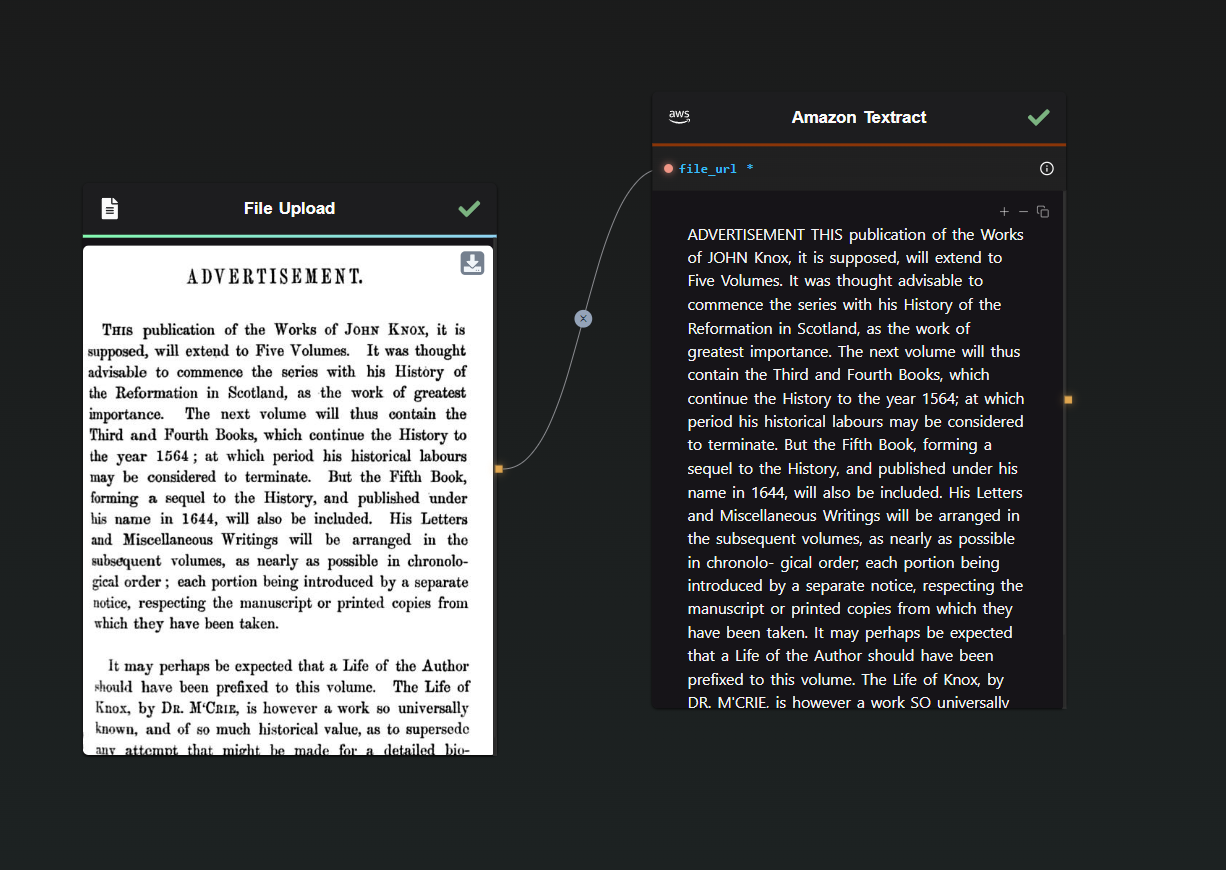
1. Streamlining Text Extraction with Amazon Textract Integration

Amazon Textract is known for its robust performance in extracting text from complex documents, such as forms and invoices. By integrating Amazon Textract into AI-Flow, you can automatically process large volumes of documents with high efficiency. Compared to other methods, Amazon Textract is faster and more cost-effective.

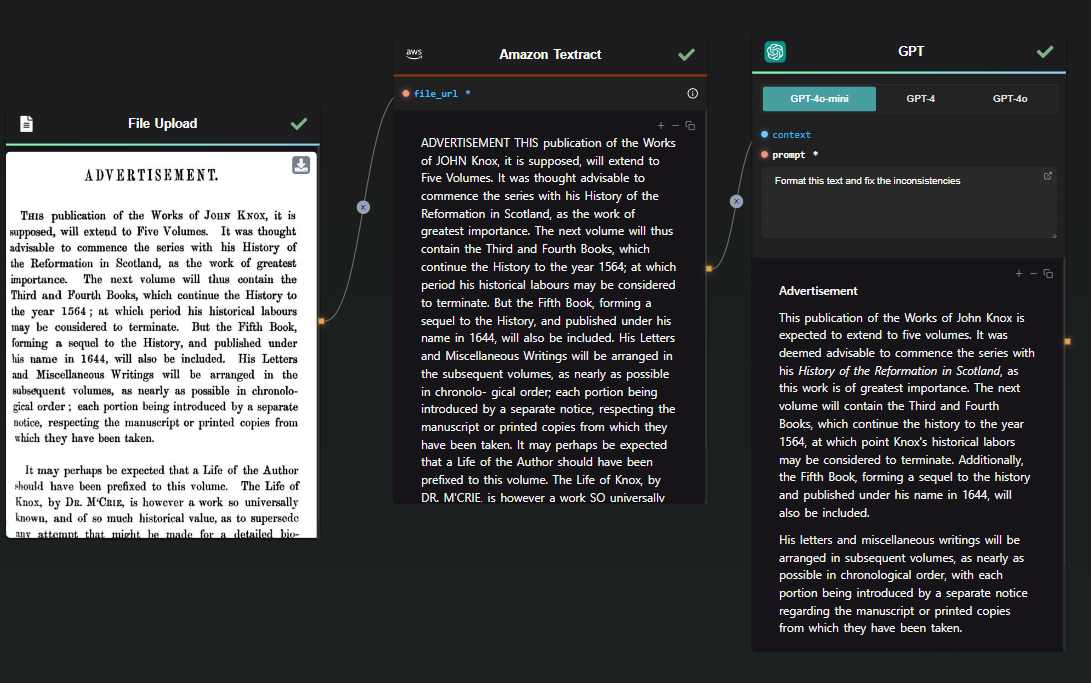
OCR Workflow with Amazon Textract

2. GPT 4o Vision Mode

For situations where context and deeper understanding are essential, GPT Vision Mode is a valuable tool. This method not only extracts text but also adds an interpretive layer, making it ideal for tasks that require nuanced understanding or additional processing, such as summarization. For instance, GPT Vision excels at extracting text from comics or manga panels, where traditional OCR tools like Amazon Textract may struggle with layout complexities.

Studies about the previous GPT-4 Vision model have shown that while GPT-4 Vision performs well for Latin characters (e.g., English, French, German), it struggles significantly with non-Latin scripts like Chinese, Korean, and Japanese. Additionally, GPT-4 Vision adapts to varying image resolutions, potentially capturing more intricate details than some traditional OCR models. However, it may have a higher "refusal rate," where it produces unusable results, a problem not typically found with traditional OCR models​.

Source : Exploring OCR Capabilities of GPT-4V(ision) : A Quantitative and In-depth Evaluation

OCR Workflow with GPT

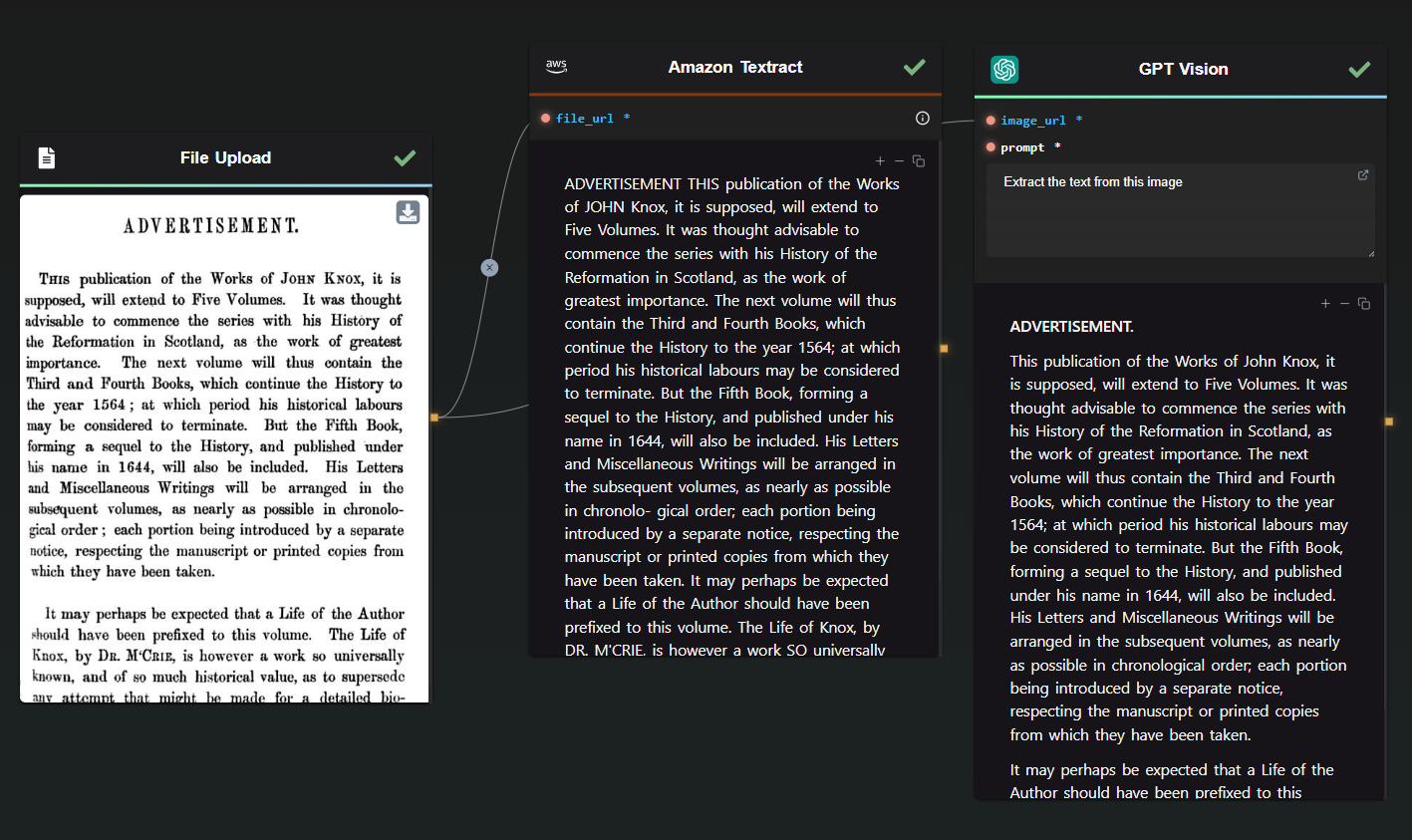
3. Combined Approach: Textract and GPT Vision

When accuracy is paramount, combining Amazon Textract with GPT Vision ensures precision by addressing discrepancies and inconsistencies. This hybrid approach allows for different strategies, such as using GPT to correct Textract’s results or leveraging both the extracted text and the image as prompts for GPT Vision. This method is particularly useful in applications where data accuracy is crucial.

Combined OCR Workflow

Customization and Enhancement with AI-Flow

AI-Flow's intuitive drag-and-drop interface makes it easy to customize and enhance your OCR workflows. You can integrate additional AI models, automate repetitive tasks, and seamlessly connect outputs to other processes, such as data entry or content management systems.

AI-Flow also supports various AI models, enabling you to experiment and refine your OCR processes to perfectly align with your specific requirements. Whether you're a small business owner or part of a large corporation, AI-Flow adapts effortlessly to meet your unique workflow needs.

Why Choose AI-Flow?

While standalone AI tools like ChatGPT offer impressive text extraction capabilities, the AI-Flow template provides a more structured, automated solution that simplifies the entire process. AI-Flow bridges the gap between multiple AI services, tailoring the experience to your specific document and data processing requirements.

Conclusion

AI-Flow empowers you to automate and enhance your OCR tasks by leveraging advanced AI solutions within a cohesive, user-friendly platform. Its versatile template offers tailored solutions that significantly improve efficiency and accuracy in text extraction projects.

Ready to streamline your OCR processes? Explore the possibilities with AI-Flow today at AI-Flow App. Unlock the full potential of AI-driven workflows and transform the way you handle text extraction from images and scanned documents.


Additional Resources

For more detailed information, refer to the following resources:

· 6 min read
DahnM20

Build and Deploy AI Workflows with AI-Flow

In today's rapidly evolving technological landscape, artificial intelligence (AI) is at the forefront of innovation. However, building custom AI tools often requires integrating multiple AI models or tools, which can be a daunting task, especially for those without extensive coding experience.

AI-Flow is a platform designed to simplify the process of building and deploying AI workflows. With its intuitive drag-and-drop interface, AI-Flow allows users to connect various AI models seamlessly and automate complex tasks with ease. In this article, we'll explore how to build and deploy AI workflows using AI-Flow, highlighting its key features and the API Builder for deployment.

Integrate Multiple AI Models

Getting Started with AI-Flow

What is AI-Flow?

AI-Flow is both a platform and an open-source tool that enables users to create custom AI tools through a simple drag-and-drop interface. It supports a wide range of AI models. Whether you're looking to generate images, summarize content, or automate workflows, AI-Flow provides the tools you need to get started quickly and efficiently.

Key Features of AI-Flow

  • Integrate Multiple AI Models Seamlessly: Combine AI models like GPT-4, Claude, and all the models hosted on Replicate and StabilityAI, among many others, for innovative outcomes.
  • Drag-and-Drop Interface: Create AI tools in minutes without any coding.
  • Customizable AI Solutions: Tailor AI solutions to your specific needs, from SEO content creation to image generation.
  • API Builder: Automate inputs and retrieve outputs via API requests or webhooks, making it easy to integrate AI workflows into your projects.

Building AI Workflows with AI-Flow

Step 1: Creating Your First Workflow

Once you have AI-Flow set up, you can start creating your first workflow:

  1. Open the AI-Flow Interface: Launch the AI-Flow application and navigate to the workflow builder.
  2. Drag and Drop Nodes: Select the AI models you want to use from the available nodes and drag them into the workflow area.
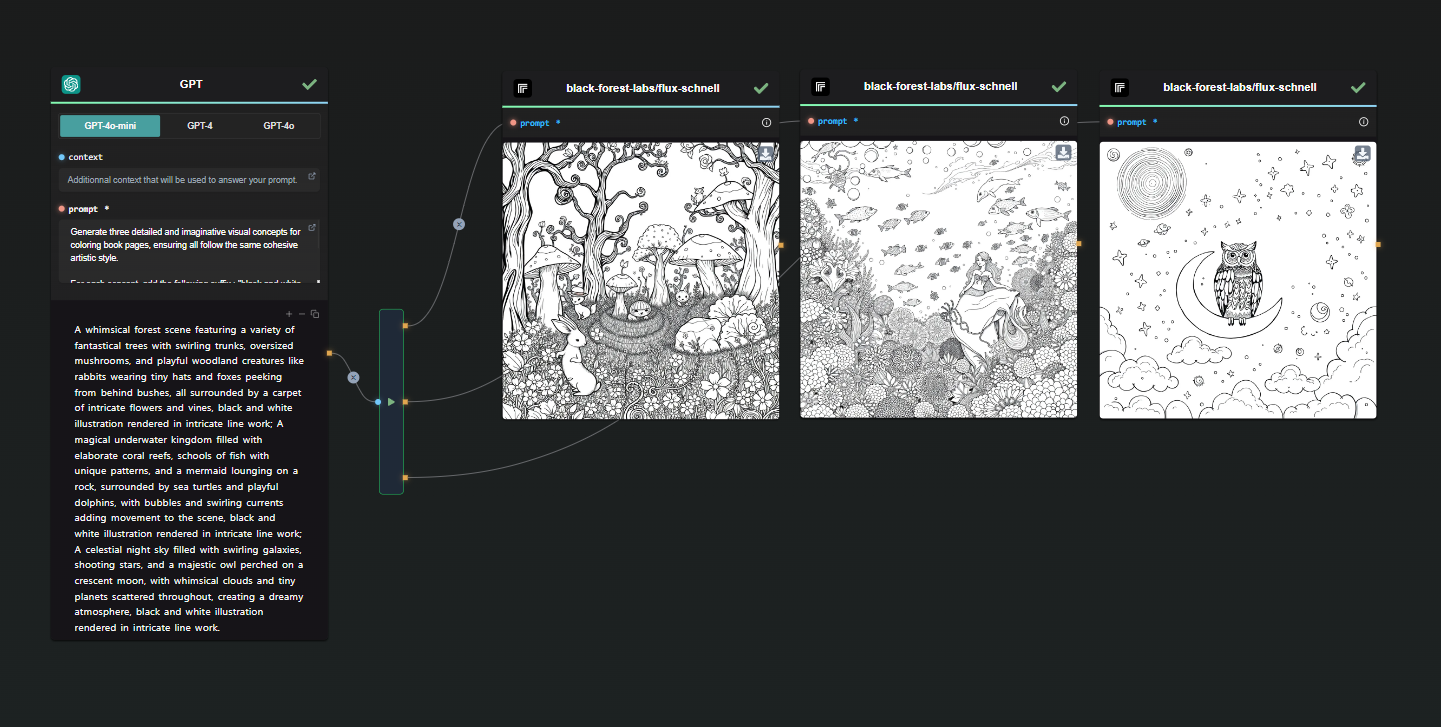
  3. Connect Nodes: Connect the nodes to define the flow of data between them. For example, you can connect a text generation model like GPT-4o to an image generation model like FLUX Pro.
  4. Configure Nodes: Customize the parameters for each node to suit your specific requirements. This might include setting prompts for text generation or specifying styles for image creation.

Step 2: Running Your Workflow

  1. Run the Workflow: Click the "Run" button to execute your workflow within the AI-Flow interface.
  2. Review Outputs: Check the outputs generated by each node to verify that they meet your expectations.
  3. Make Adjustments: If necessary, adjust the parameters or connections between nodes to refine your workflow.

Workflow Output Example

Optional: Start with a Template

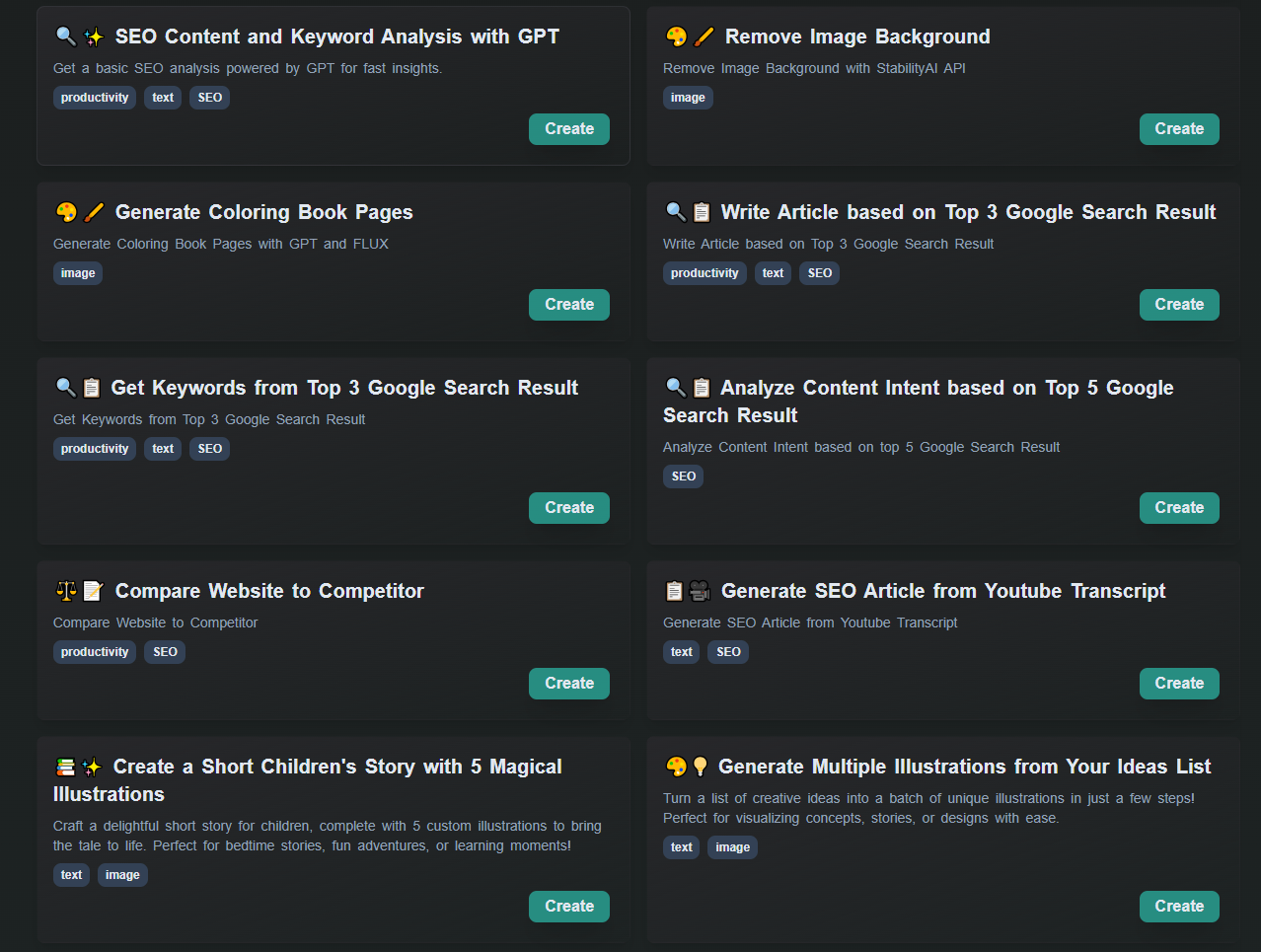
AI-Flow comes with various templates, inspired by user feedback. These templates can be easily customized or used as a way to discover the features of the app.

Start with a template - AI Flow

Deploying AI Workflows with the API Builder

This is an optional feature, designed for those looking to integrate their workflow into an external project.

What is the API Builder?

The API Builder is a powerful feature within AI-Flow that allows you to automate inputs, execute workflows with REST API calls, and handle outputs efficiently with webhooks. This makes it easy to integrate your AI-powered workflows into any project, whether it's a web application, mobile app, or backend service.

Step 1: Configuring API Input and Output Nodes

To deploy your workflow via the API Builder, you'll need to use the API Input and Output nodes:

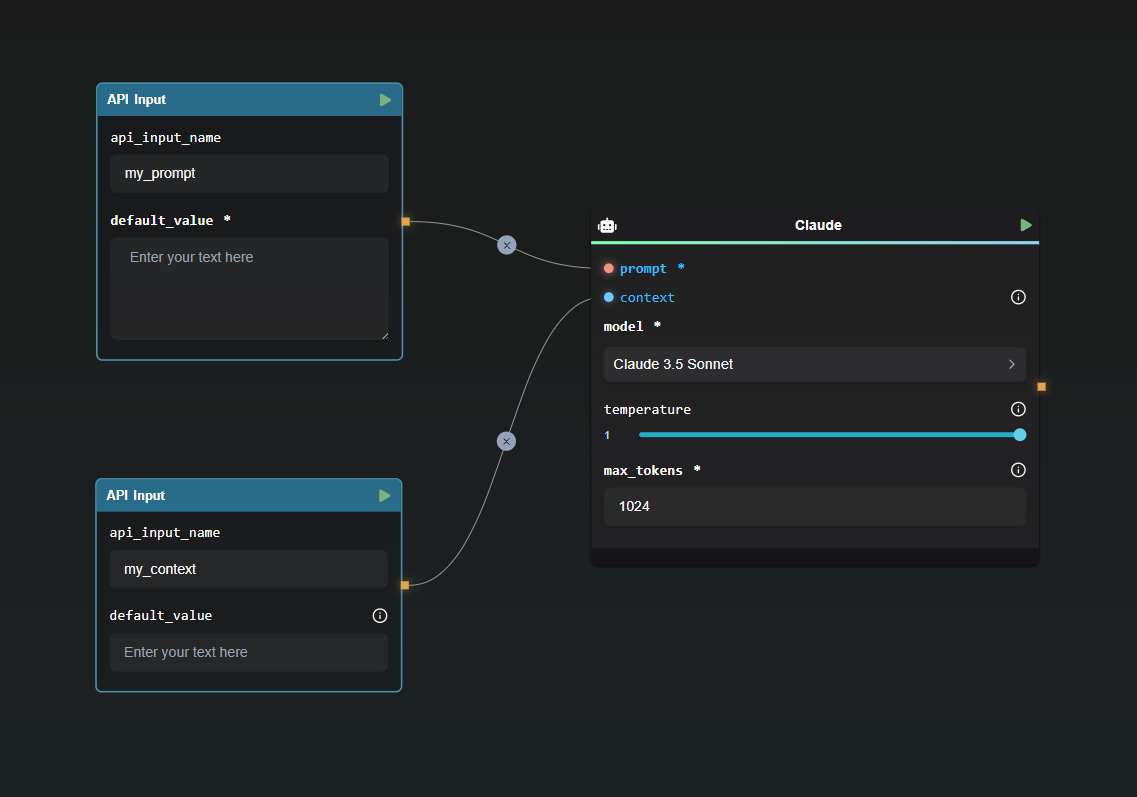
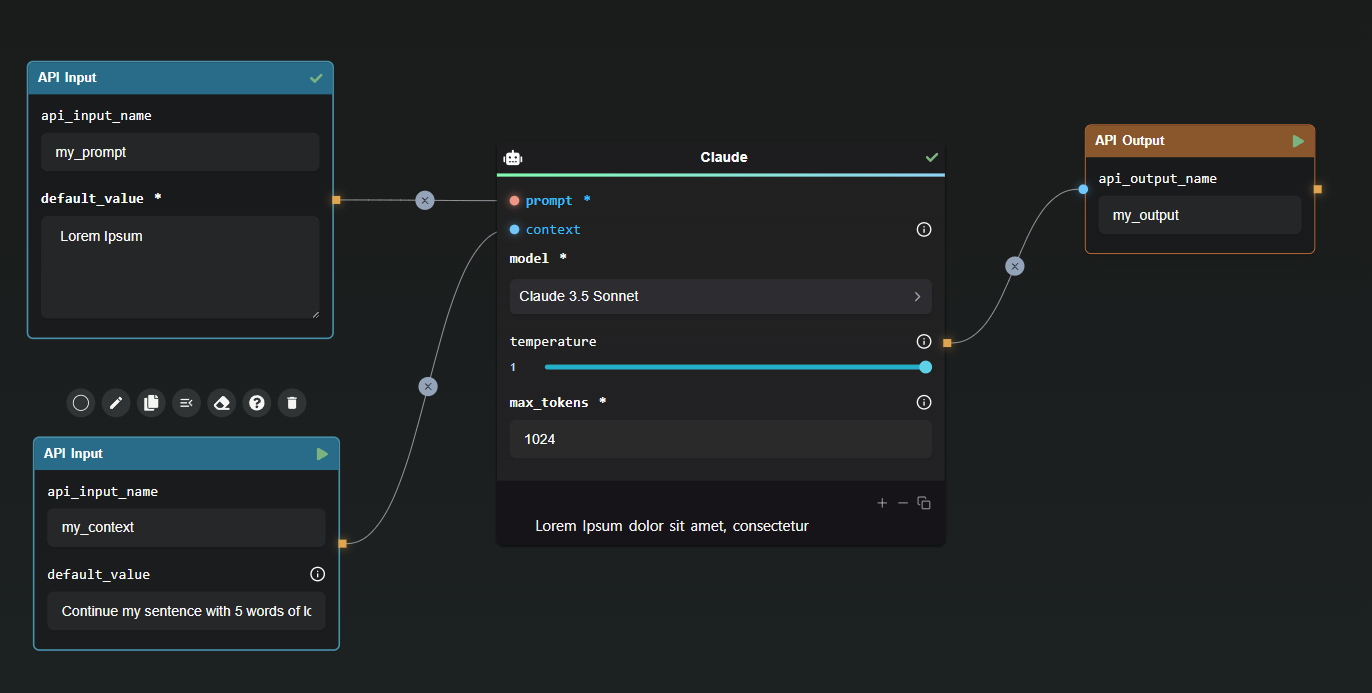
  1. API Input Node: Define the inputs for your API by mapping each field in the request body to a corresponding API Input node in your workflow. Set default values for optional parameters.

Webhook Node Example

Example Request Body:

{
"my_prompt": "Lorem Ipsum",
"my_context": "Lorem Ipsum"
}
  1. API Output Node: Specify the names of the fields in the final response to ensure the output is structured and understandable.

Webhook Node Example

Example Response:

{
"my_output": "Lorem Ipsum dolor sit amet, consectetur"
}

Step 2: Generating API Keys

To ensure secure access to your workflow, generate API keys within the API Builder. These keys are essential for authorizing requests and are displayed only once for security purposes.

Step 3: Running Your Workflow via API

With your API keys in hand, you can now run your workflow using REST API calls. The API Builder provides code snippets to help you get started. For example, using cURL:

curl https://api.ai-flow.net/v1/flow/<your_flow_id>/run \
-H "Content-Type: application/json" \
-H "Authorization: Bearer $AI_FLOW_API_KEY" \
-d '{
"my_prompt": "Lorem Ipsum",
"my_context": "Continue my sentence with 5 words of lorem ipsum"
}'

This command initiates the flow and returns a run ID to track the process. You can retrieve the results using this ID once the processing is complete.

Step 4: Enhancing Integration with Webhook Nodes

The Webhook Node allows you to send outputs to designated URLs, enabling real-time integration and response handling in your applications. Configure the Webhook Node by specifying the target URL and selecting the outputs to send.

Example Configuration:

{
"my_output": "Lorem Ipsum dolor sit amet, consectetur"
}

This ensures that structured data is sent to the specified URL, facilitating smooth integration and authentication via custom signatures.

Conclusion

AI-Flow simplifies the way we build and deploy AI workflows by offering an intuitive, no-code platform that simplifies the integration of multiple AI models. With its drag-and-drop interface, customizable solutions, and API Builder, AI-Flow empowers users to create and deploy AI-powered workflows effortlessly. Whether you're a beginner or an expert, AI-Flow provides the tools you need to harness the power of AI and drive innovation in your projects.

Start building your AI workflows today with AI-Flow and experience the ease and efficiency of seamless AI integration. For more information and to get started, visit the AI-Flow Application and explore the comprehensive documentation and resources available.


Additional Resources

For more detailed information, refer to the following resources:

· 4 min read
DahnM20

AI-Flow is a tool designed to simplify and automate your AI workflows by connecting various services and tools into a unified flow. This guide will help you get started with AI-Flow, including adding nodes, connecting them, and customizing your workspace for an optimized workflow.

Adding and Connecting Nodes

To build your AI workflow, nodes can be added to the canvas using a simple drag-and-drop interface. Here's a quick overview of how to manage nodes:

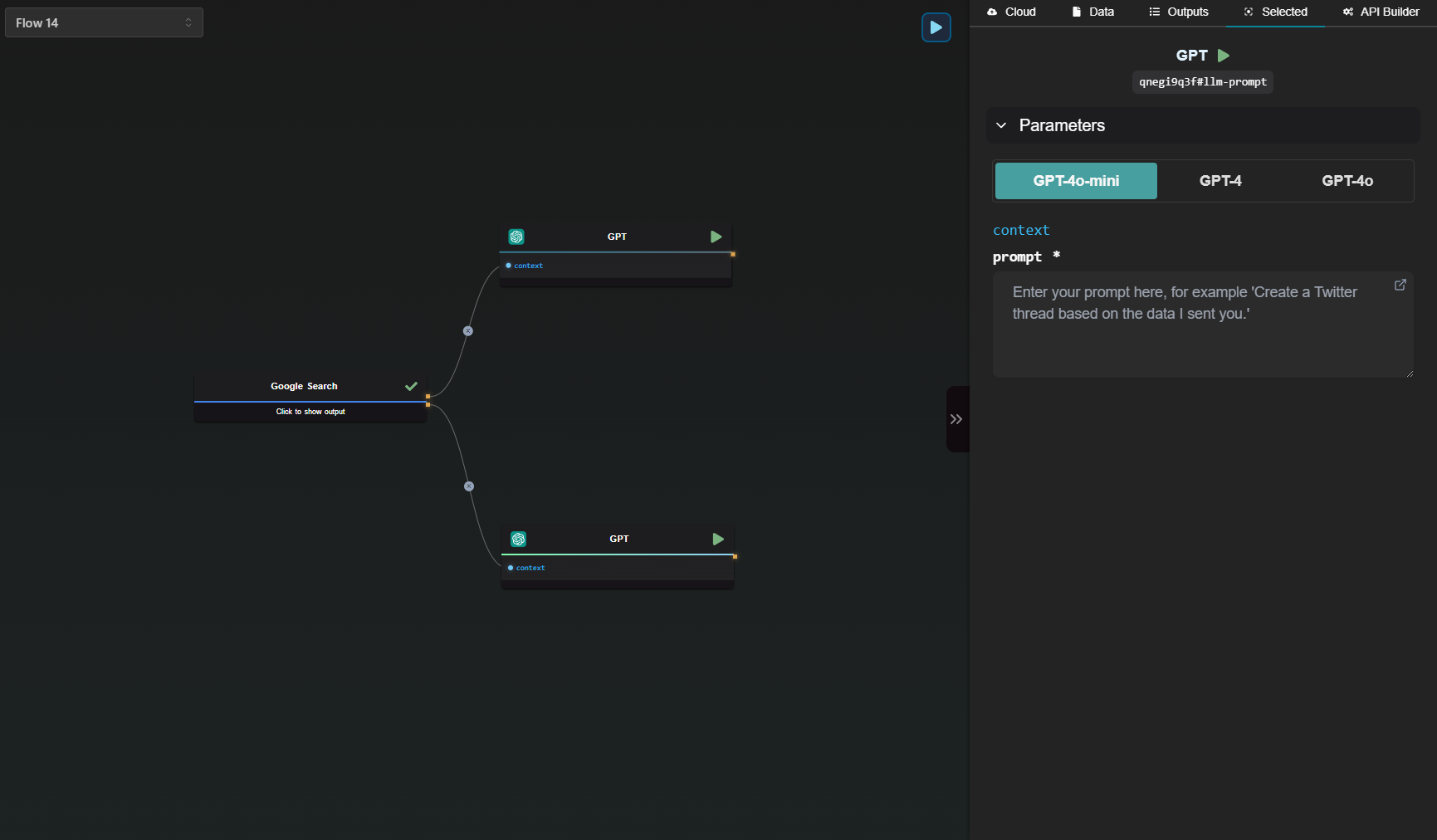
  • Handles: In AI-Flow, input and output connections are visualized through handles:
    • Round handles represent input connections.
    • Square handles represent output connections.
  • Handle Color Coding:
    • Blue input are optional.
    • Red input are mandatory and must be connected (or filled) for the node to function.

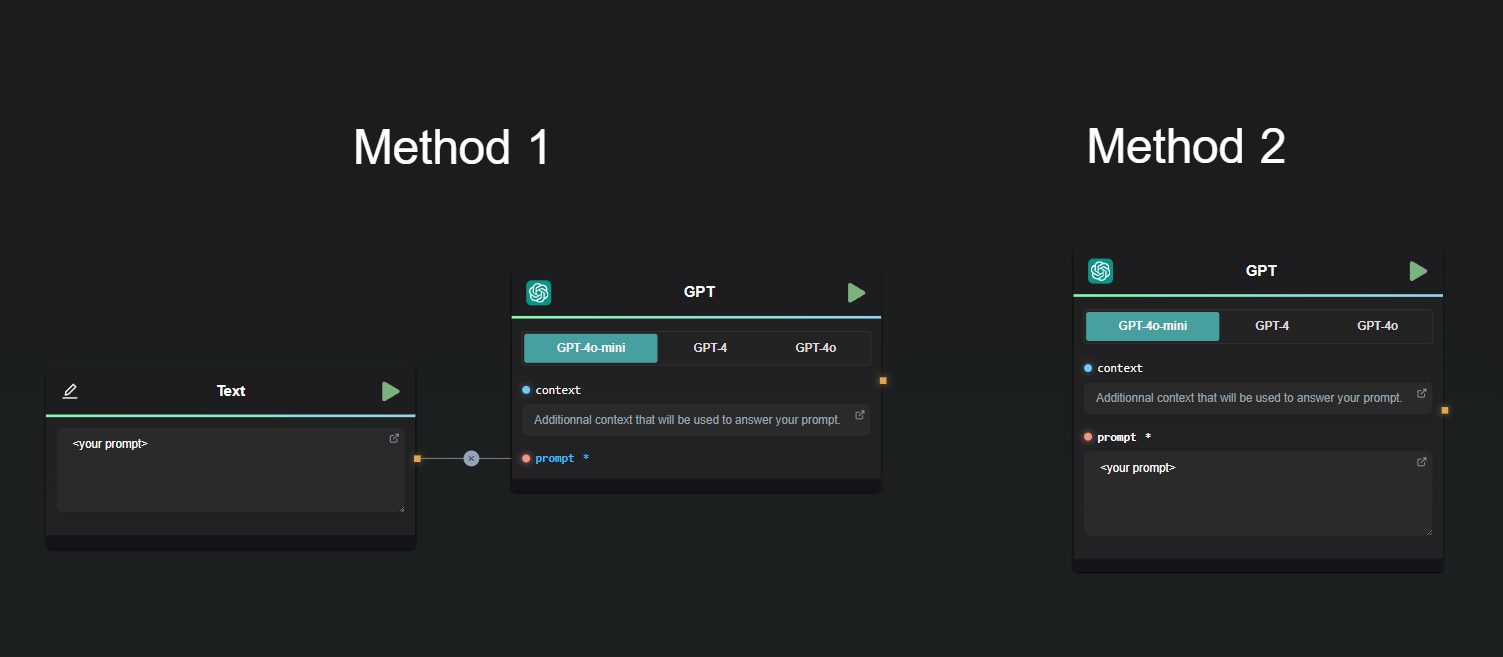
For some nodes, values can either be entered directly into the field or provided through a handle. If a handle is connected to a field, the input field disappears, leaving only the handle.


Example Node connection

Here’s a basic example:

  • Both methods yield the same result.
  • The context field is optional, allowing the node to function without it.
  • The prompt field is mandatory and must be either filled in or connected to another node.

Types of Nodes

AI-Flow offers a wide variety of nodes to suit different needs. Below is a general overview of the node categories:

  • Inputs: Nodes that bring external data into your flow.
  • Models: These nodes connect to AI models provided by services such as OpenAI, StabilityAI, and Replicate.
  • Tools: Nodes designed to manipulate data and structure your workflow.
  • API Builder: These nodes enable your flow to be accessed via API calls. Learn more about this feature in the API Builder documentation.

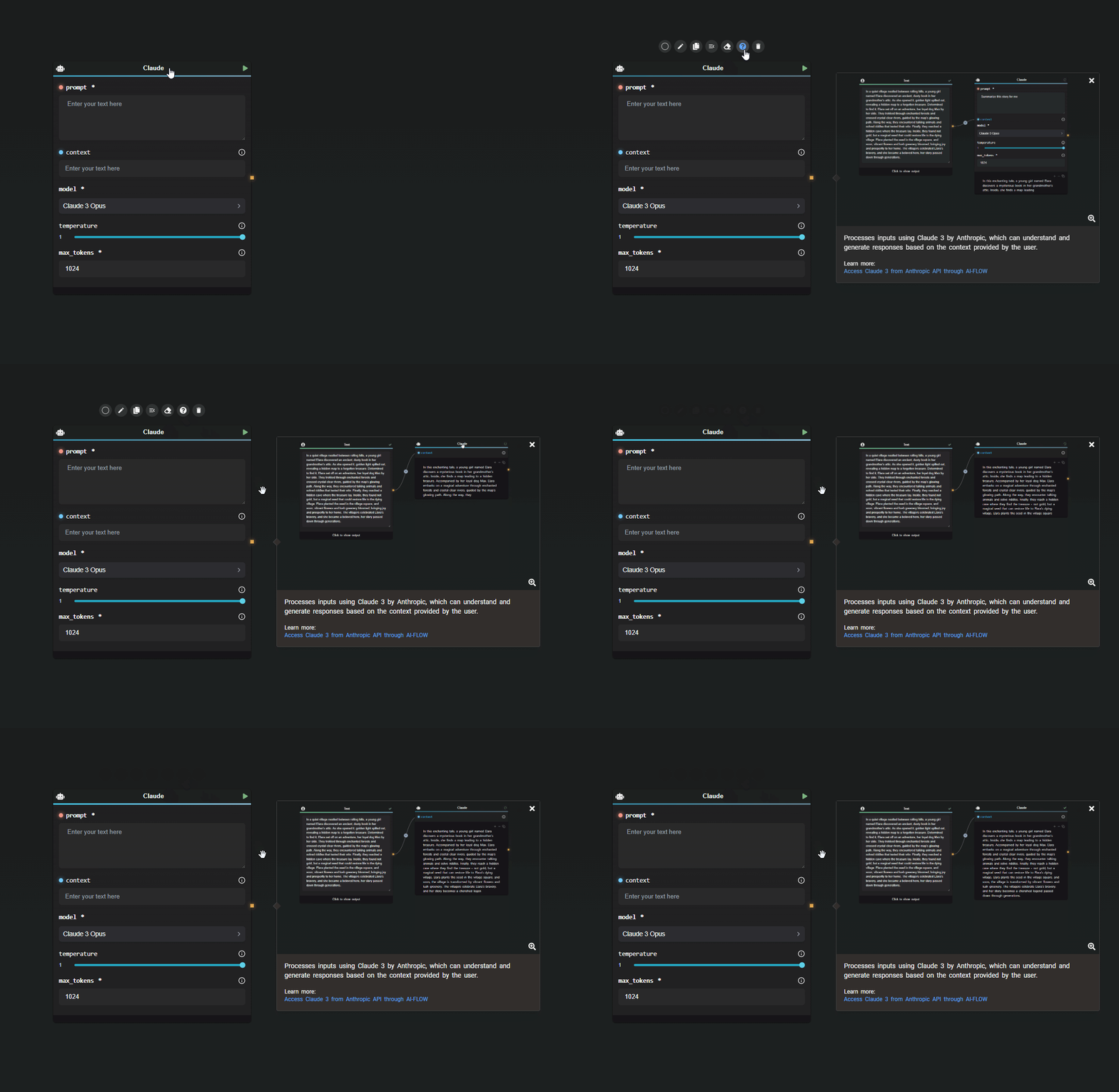
To dive deeper into the functionality of a specific node, use the help action within the node for detailed descriptions, demos, and related resources.

Help Action

File Upload Node

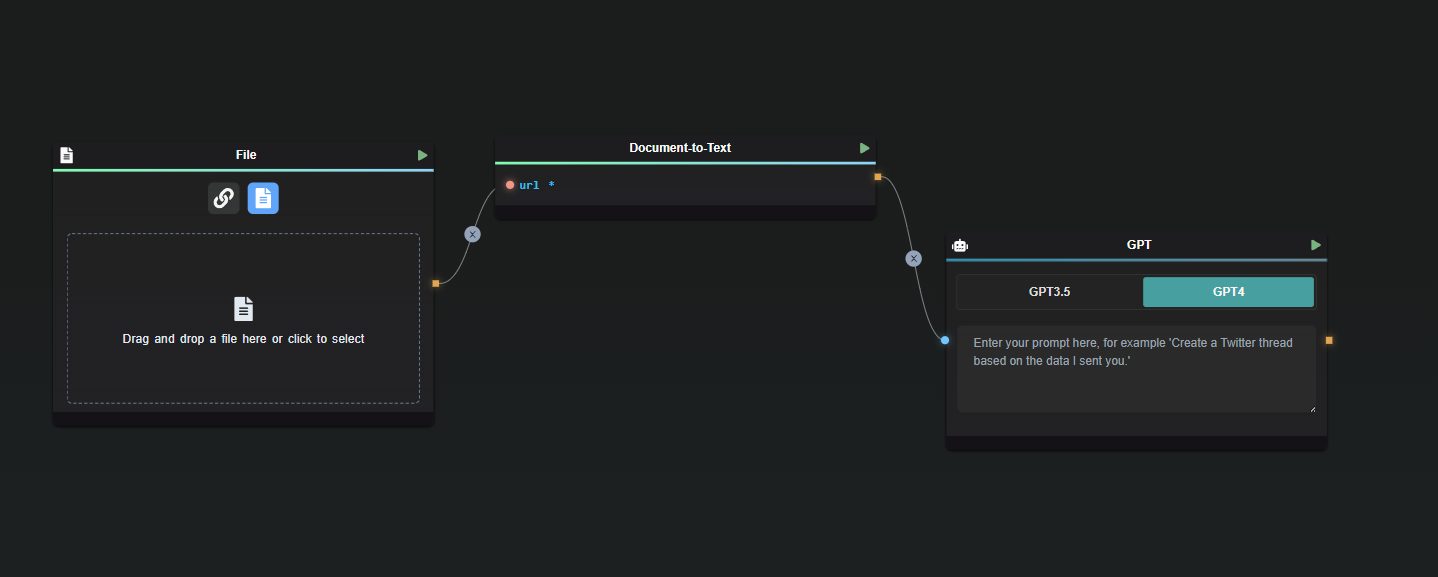
The File Upload node is used to upload a file into the workflow. The node returns a URL that links to the uploaded file.

It's important to note that if you upload a PDF file, the output of the File Upload node will not contain the text content of the PDF itself. To extract the text from the document, follow the upload with a Document-to-Text node, which will process the file and return its text content.

File Upload Node

Opening the Right-Side Pane

Help Action

The right-side pane in AI-Flow provides additional functionality to enhance your workflow management. Here’s what you can do when the pane is open:

  • View Outputs: See a comprehensive list of all outputs generated by the nodes in your flow.
  • Edit Nodes: Directly edit any selected node, even if the node is minimized on the canvas.
  • Disable Auto-Save: Choose to disable the automatic cloud save feature if preferred.
  • Save and Import Flows: You can save your current flow as a .json file for future use or import a previously exported flow.
  • API Management: Manage your API settings and configurations directly from this pane.

This feature is essential for keeping your workflow organized and accessible while providing quick access to critical actions.

Customizing Your Experience

You can tailor the AI-Flow interface to fit your needs:

  • Access the settings to customize which nodes are displayed on the app.
  • The minimap can be toggled on or off to suit your preference.

Note that new nodes may be added over time but may not appear by default. Stay updated with news on the Home page and adjust your display settings to include any newly added nodes that fit your workflow.

Additional Resources

For more detailed information, refer to the following resources: