
Flux Kontext Dev Lora
Image editing with FLUX.1 Kontext[dev] using external LoRA finetunes from HuggingFace, CivitAI, Replicate, or custom URLs.

No workflow setup required · Fully customizable in AI-Flow
What This App Does
Flux Kontext Dev LoRA is an image editing template built around the FLUX.1 Kontext[dev] model, designed specifically for working with LoRA finetunes. You upload a base image, point the workflow to a LoRA file, and describe how you want the image to be transformed in natural language.
The key idea is that style, character, or theme are controlled by the LoRA weights, while the prompt describes the edit. This template supports LoRA files hosted on HuggingFace (e.g., .safetensors from model repos), CivitAI LoRA assets, Replicate-hosted LoRAs, or any direct URL to a compatible LoRA file. You can also swap LoRAs quickly to test different aesthetics or concepts on the same base image.
With controls for LoRA strength, guidance, aspect ratio, resolution, steps, and output format, this template is ideal for turning existing images into PS1-style renders, anime variants, stylized portraits, branded looks, and many other LoRA-driven transformations.
How to Use the App
Here’s what you get when you open the app: a short form, one run button, your results — no nodes, no setup.
Flux Kontext Dev Lora
App previewFill in the form
Input Image
RequiredAdd images or files
Prompt
RequiredType your prompt…
Aspect Ratio
1:1
Disable Safety Checker
Off by default
Guidance
+5 more options in the app
≈ 4 credits / run
Get your result
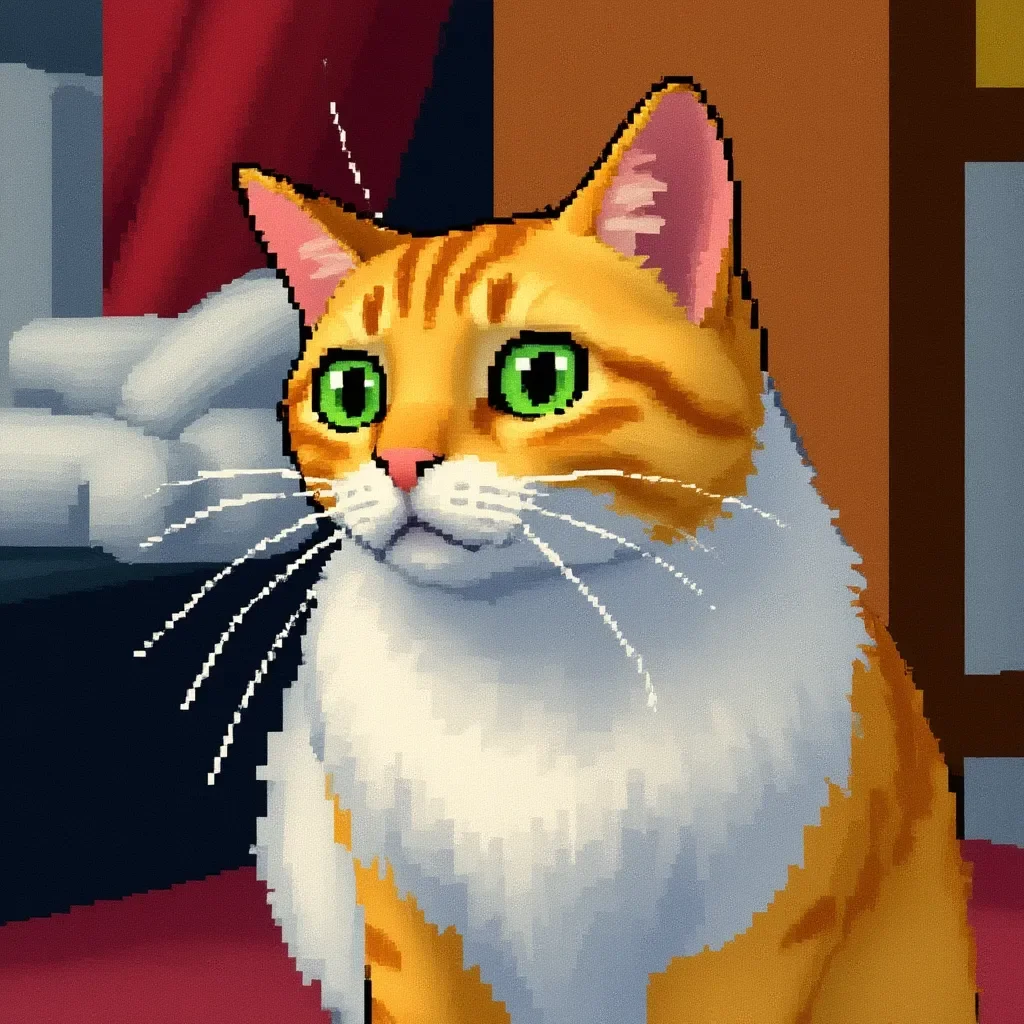
Real output generated with this app
Under the Hood
Want more control?
This app is powered by a fully editable AI-Flow workflow. Change the model, prompts, layout, resolution — or connect it to other steps.
Reference Image
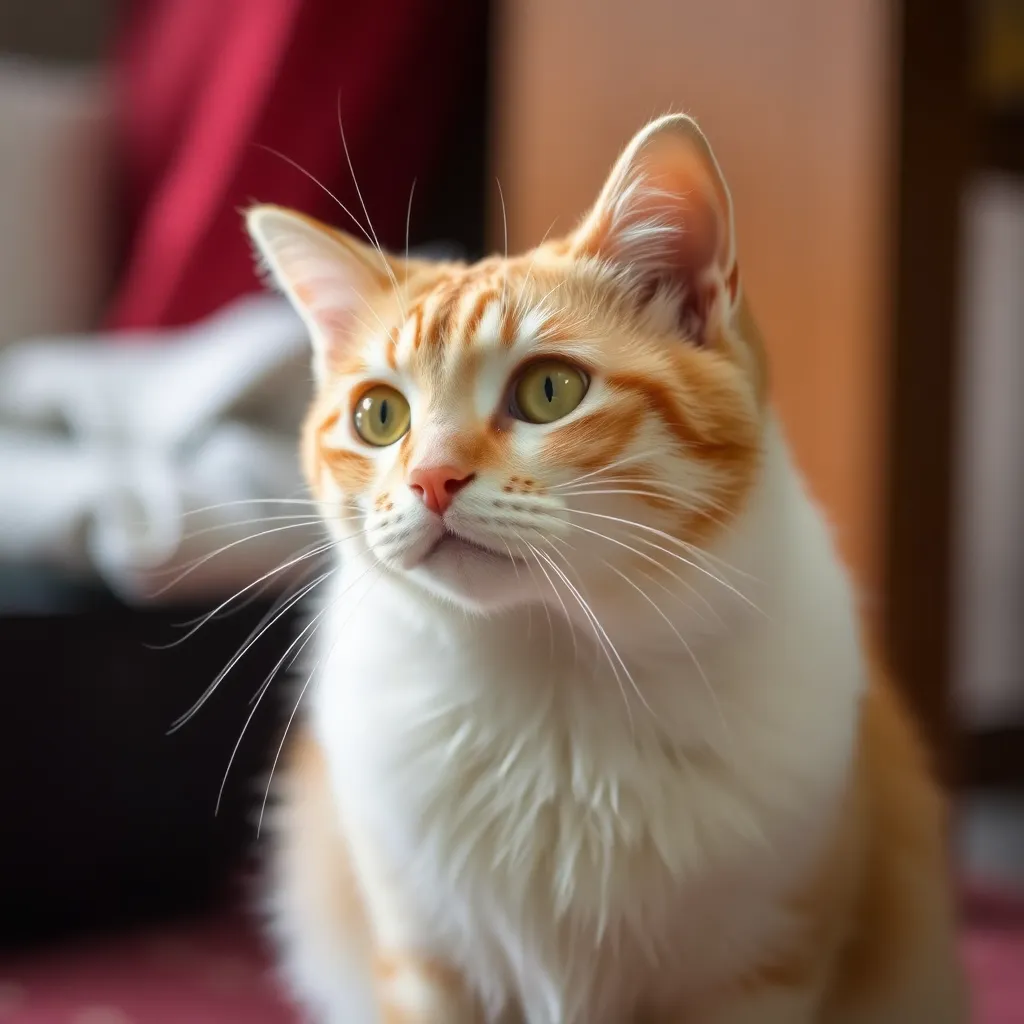
Prompt
render this image like a ps1 game (no UI)
LoRa Weights
Flux Kontext Dev Lora
How to Use This Template
Step 1: Upload your file
In the 'Reference Image' node, upload the file you want to process.
Step 2: Upload your file
In the 'LoRa Weights' node, upload the file you want to process.
Step 3: Enter your text in 'Prompt' Node
Fill the 'Prompt' node with the required text.
render this image like a ps1 game (no UI)
Step 4: Run the Flow
Click the 'Run' button to execute the flow and get the final output.
Customize the underlying workflow
Open the full workflow in the AI-Flow editor to swap models, rewrite prompts, or connect it to other steps.
Who is this for?
Perfect for professionals and creators looking to streamline their workflow
Artists and style explorers
Illustrators and hobbyists who like to experiment with different aesthetics (PS1, anime, painterly, cinematic, etc.) by plugging in LoRAs from HuggingFace, CivitAI, or Replicate.
Character and branding designers
Creators who use character- or style-specific LoRAs to keep a consistent look across multiple edited images and campaigns.
Pipeline and tool builders
Developers integrating LoRA-based editing into larger workflows, who need a simple API-driven way to pass LoRA URLs and parameters.
Advanced AI users migrating from SD ecosystems
Users already familiar with LoRAs in Stable Diffusion who want a structured way to reuse their LoRA library with a FLUX.1 Kontext[dev] setup.
Ready to create?
Start using this app
No workflow setup required — open the app and start creating in minutes
You Might Also Like
Explore other powerful templates to enhance your AI workflow
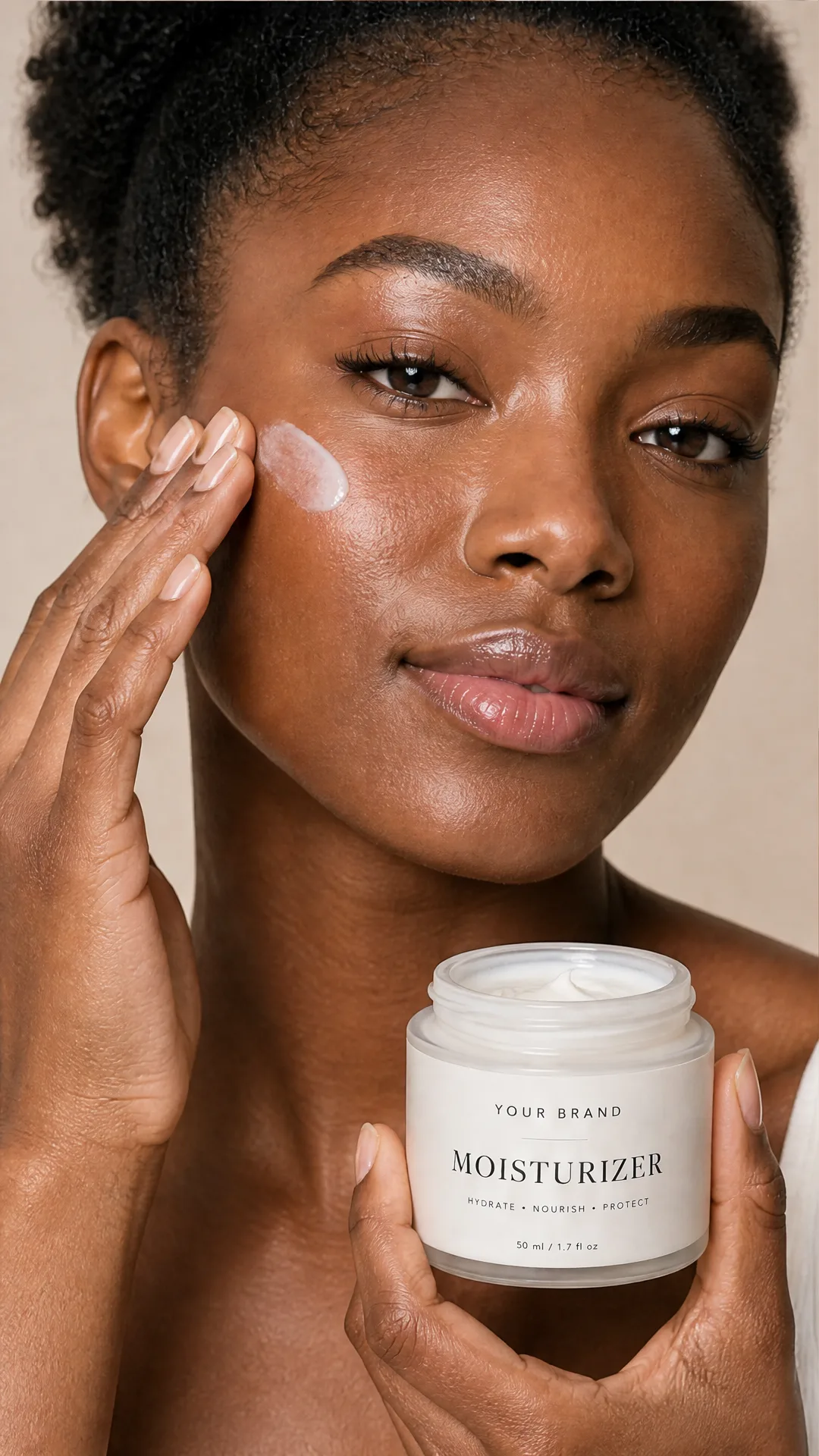
AI Skincare Product Photo Generator
Turn one cream, serum, or cosmetic jar image into a full skincare photoshoot: a 2x2 grid plus four cropped shots (wide, medium, close-up, creative), on-model or product-only, for beauty ecommerce, marketplaces, and ads.
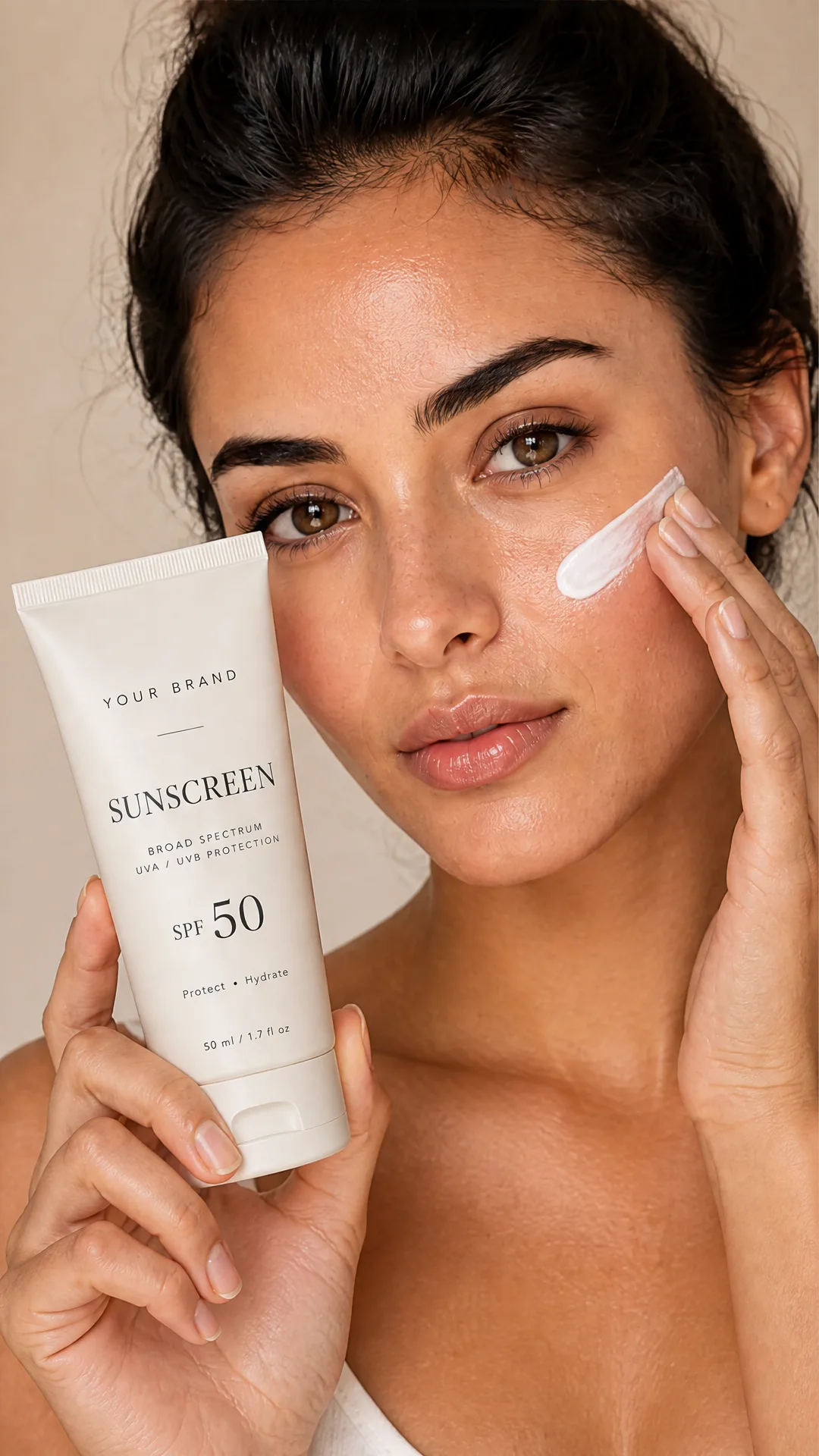
AI Sunscreen Product Photo Generator
Turn one sunscreen tube or bottle image into a full suncare photoshoot: a 2x2 grid plus four cropped shots (wide, medium, close-up, creative), on-model or product-only, for beauty ecommerce, marketplaces, and ads.
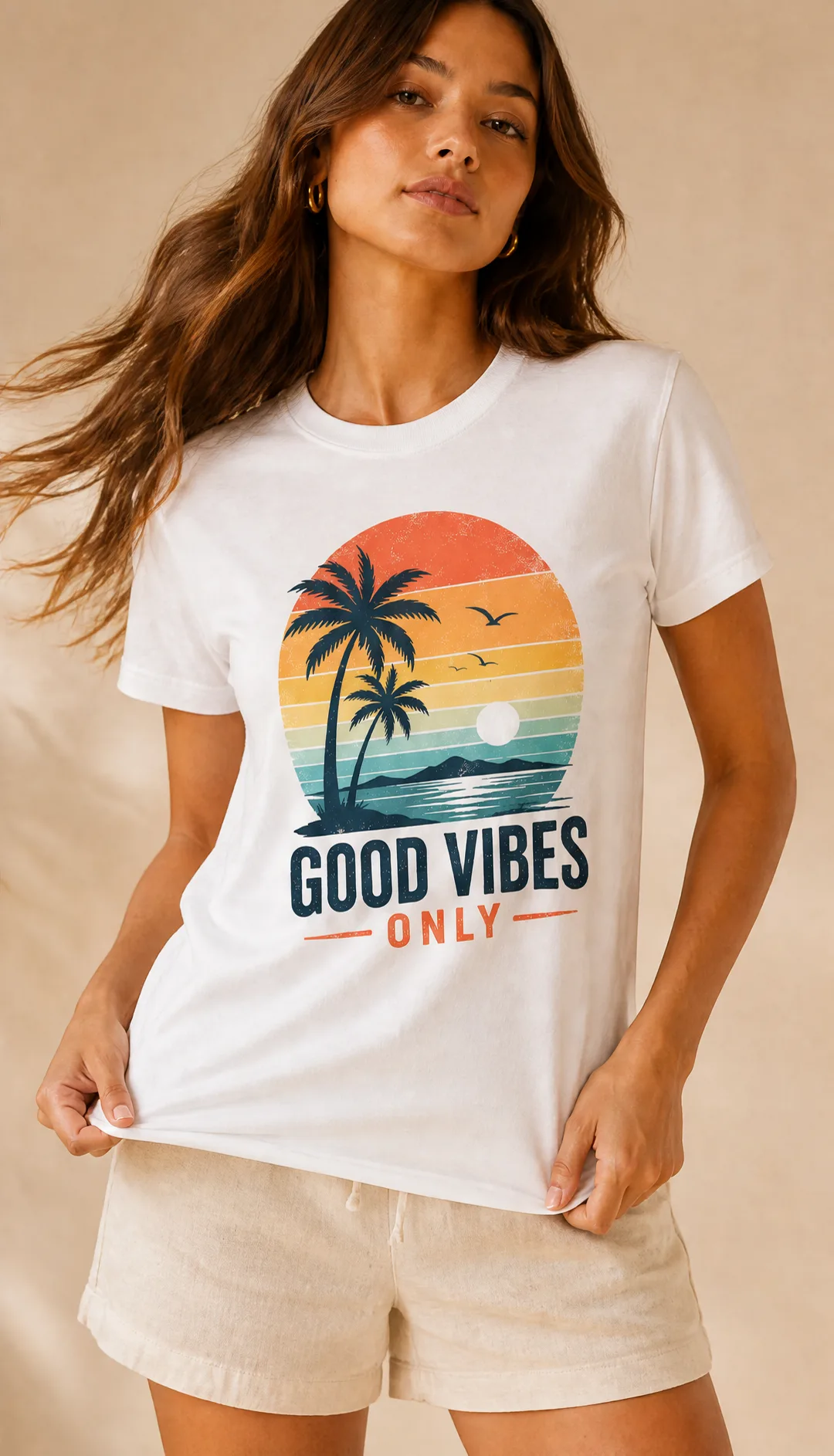
AI T-Shirt Mockup Generator
Turn one t-shirt design image into on-model print-on-demand mockups: a 2x2 photoshoot grid plus four cropped shots (wide, medium, close-up on the print, creative), for Etsy, Shopify, and POD storefronts.
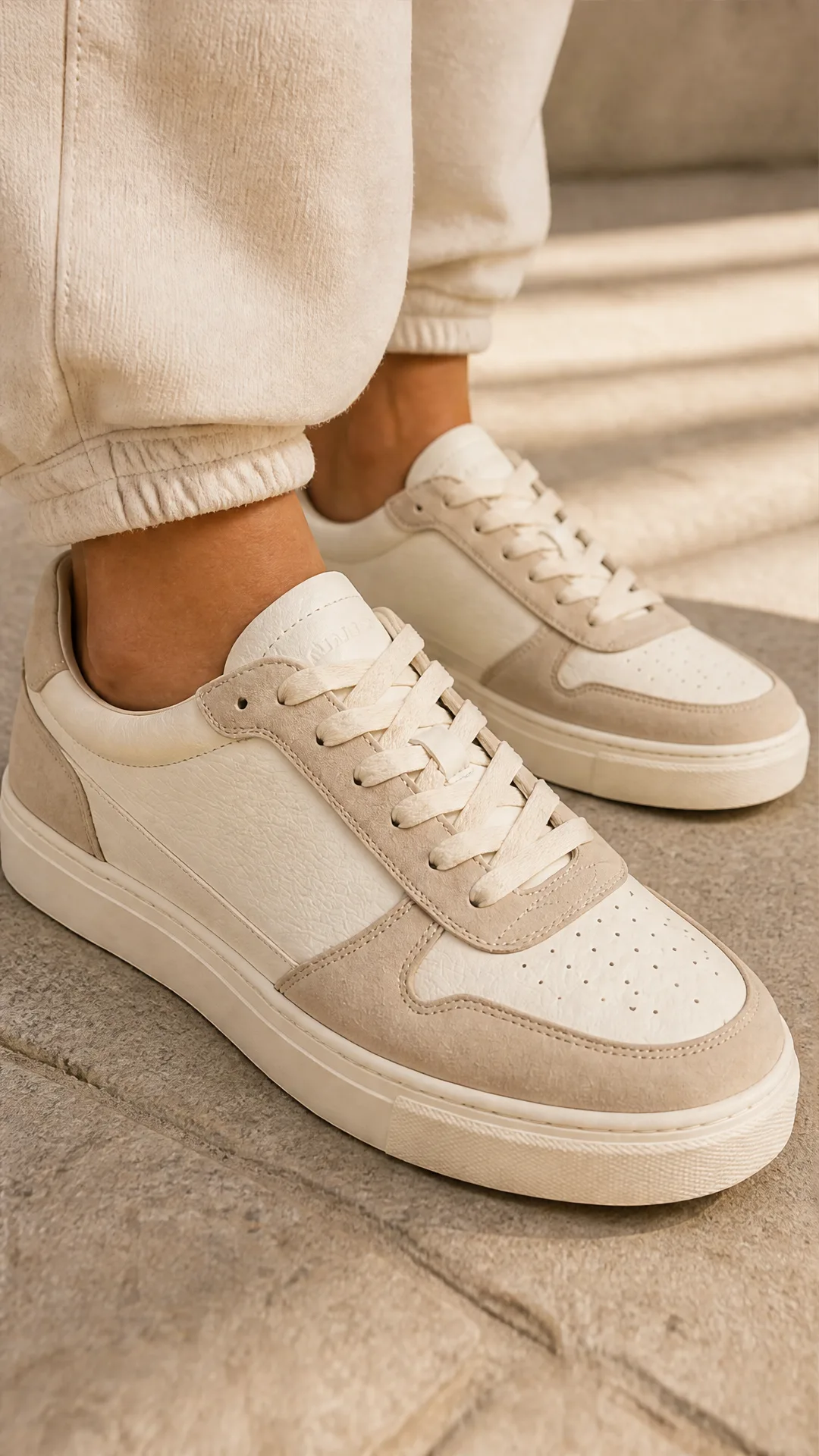
AI Sneaker Product Photo Generator
Generate sneaker product photos from a single shoe image: a 2x2 photoshoot grid plus four cropped shots (wide, medium, close-up, creative), in on-foot or product-only mode, for ecommerce listings, marketplaces, and ads.
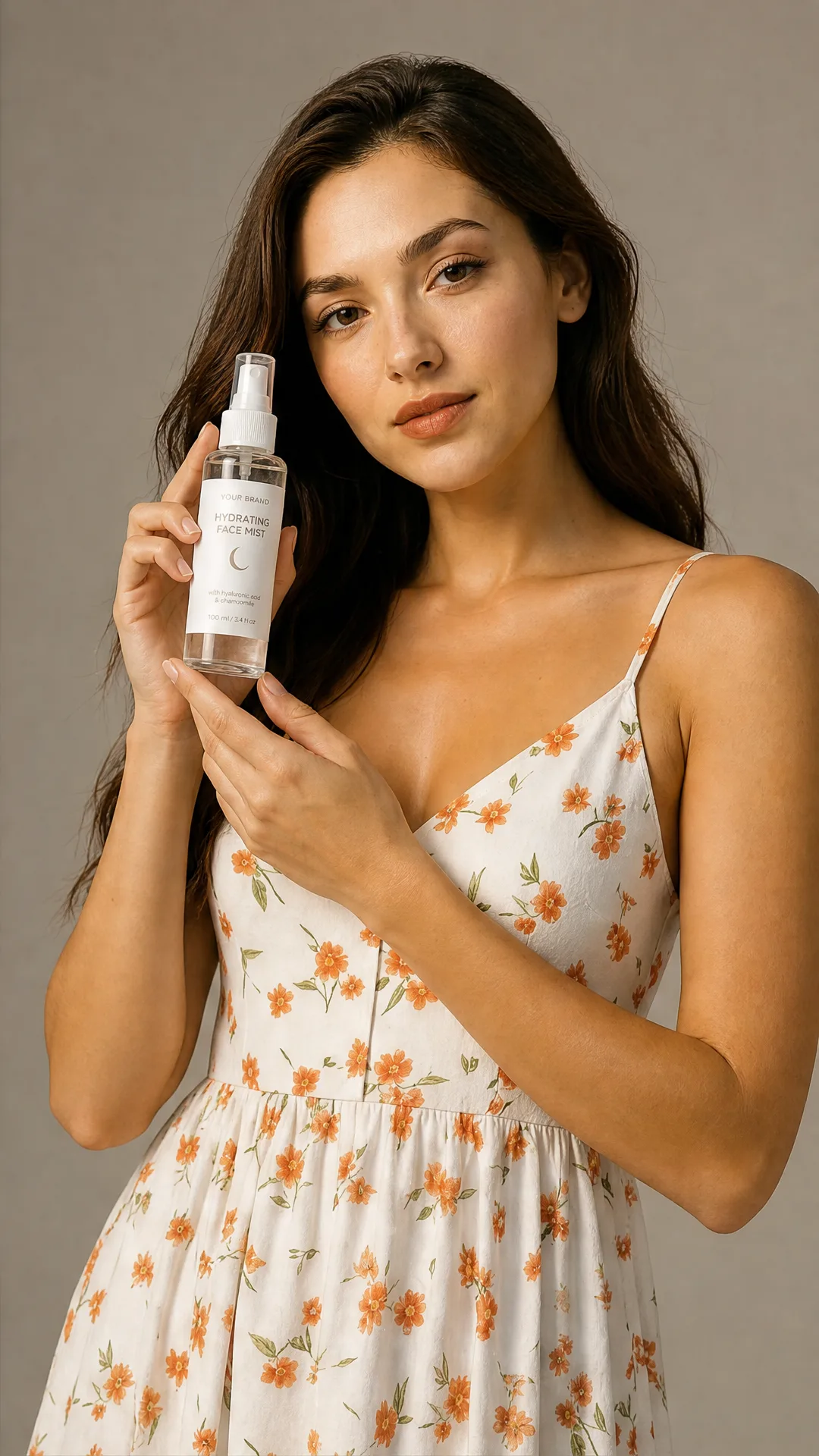
Product Photoshoot Pro
The complete AI product photoshoot: upload a product photo, choose a with-model or product-only shoot, add an optional model reference, style instructions, and aspect ratio, and get a 2x2 grid plus four cropped shots (wide, medium, close-up, creative).
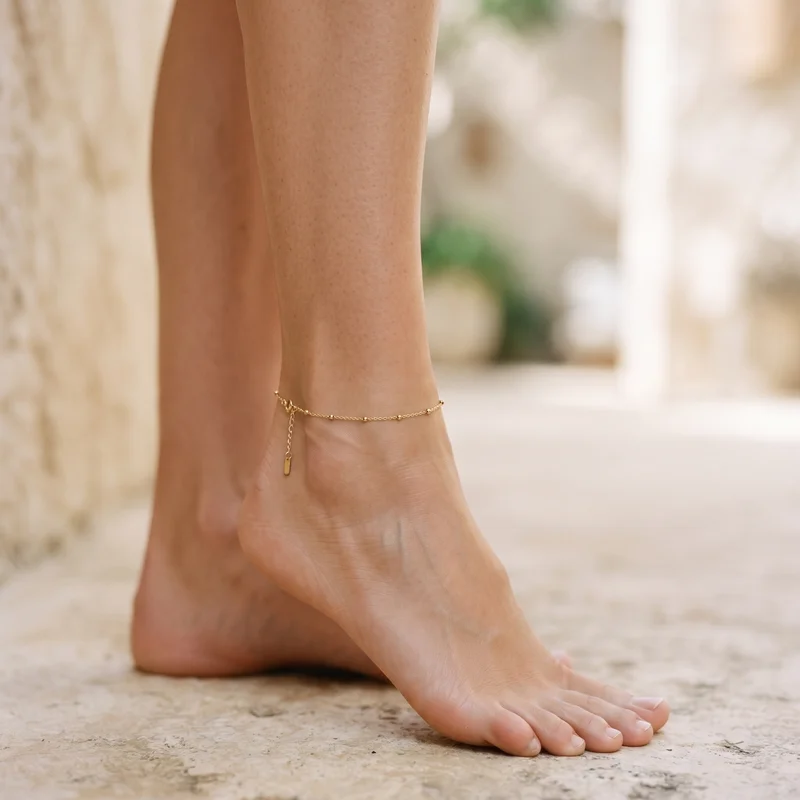
AI Anklet Mockup Generator On Ankle
Create photorealistic on-ankle anklet mockups from a product photo and a model image for jewelry ecommerce product pages, summer campaigns, marketplaces, and ads.
Frequently Asked Questions
What is this template used for?
This template edits an existing image using the FLUX.1 Kontext[dev] model and an external LoRA file. The LoRA controls the style or concept, while your prompt describes the desired edit.
Where can I get LoRAs to use with this?
You can point the template to LoRAs hosted on HuggingFace (e.g., .safetensors files in model repos), CivitAI LoRA pages, Replicate-hosted LoRAs, or any direct URL where a compatible LoRA file is stored.
How do I use a LoRA from HuggingFace?
Go to the LoRA’s HuggingFace repo, copy the direct file URL (usually ending in .safetensors), and paste it into the 'lora_weights' field. Adjust 'lora_strength' to control how strongly the LoRA influences the edit.
Can I use LoRAs from CivitAI?
Yes. Download or copy the direct file link for the LoRA from CivitAI and paste that URL into the 'lora_weights' input. Make sure it points to the actual LoRA file, not just the page.
What does the lora_strength parameter do?
It controls how strongly the LoRA affects the final image. Lower values keep more of the original look, while higher values push harder toward the LoRA’s style or concept.
Do I have to use a LoRA every time?
The template is built around LoRA usage, so it’s most useful when you supply LoRA weights. Without a LoRA, you’d generally use a different template focused on standard FLUX image editing.
What is AI-FLOW and how can it help me?
AI-FLOW is an all-in-one AI platform that allows you to build, integrate, and automate AI-powered workflows using an intuitive drag-and-drop interface. Whether you're a beginner or an expert, you can leverage multiple AI models to create innovative solutions without any coding required.
Is there a free trial available?
Yes, AI-FLOW offers a free trial to get you started. After that, you can purchase credits as needed—no subscription or long-term commitment required.
Can I integrate my API keys from providers like OpenAI and Replicate with AI-FLOW Cloud Version ?
Yes, you can easily integrate your existing API keys with AI-FLOW. If specified, nodes related to the API key provided will use your API key, significantly reducing your platform credit usage.